Quick Answer
- Remove background noise and reduce distracting echo.
- Trim pauses, mistakes and repeated explanations.
- Generate captions and correct transcription errors.
- Compare the enhanced version with the original before exporting.
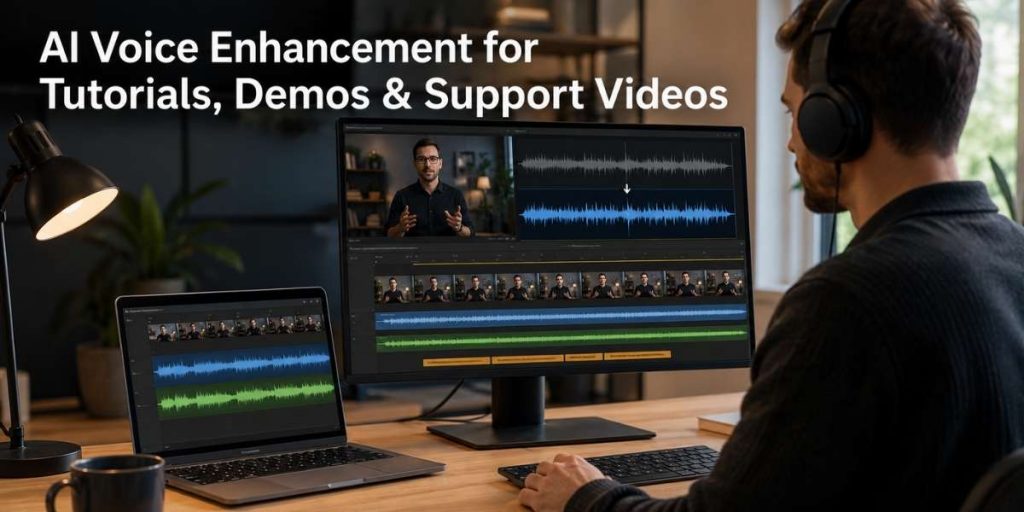
AI voice enhancement can turn a usable screen recording into a clearer tutorial, product demo or support video. The best workflow improves speech first, then fixes pacing, captions and export quality without making the speaker sound artificial.
What Does AI Voice Enhancement Do?
AI voice enhancement analyses spoken audio and attempts to make the voice easier to understand. Depending on the editor, it may reduce steady background noise, soften room echo, balance volume and improve speech clarity.
| Audio problem | What AI may improve | What still needs review |
|---|---|---|
| Fan or air-conditioner noise | Reduce steady background sound | Check whether the voice sounds thin or processed |
| Room echo | Make speech sound closer and clearer | Strong reverberation may remain |
| Uneven speaking volume | Create more consistent loudness | Listen for sudden volume changes |
| Long pauses and filler words | Speed up transcript-based trimming | Keep natural pauses that improve understanding |
Important limitation
AI cannot fully recover words that were never captured clearly. Severe clipping, a disconnected microphone or speech covered by louder voices may require re-recording.
Where Does Enhanced Voice Make the Biggest Difference?
Tutorial videos
Clear narration helps viewers follow instructions without repeatedly rewinding important steps.
Product demos
A focused voice track keeps attention on the feature, benefit and next action rather than recording noise.
Support videos
Better speech clarity makes troubleshooting instructions easier to understand for customers using different devices.
Start with a clean source using Flonnect’s screen recorder for tutorials and demos, which supports screen, webcam, microphone and system-audio capture.
Before and After AI Voice Editing
| Before editing | After a careful AI edit |
|---|---|
| Keyboard, fan or street noise competes with speech | Narration is more prominent and easier to follow |
| Long pauses make the tutorial feel slow | Unnecessary gaps are trimmed while useful pauses remain |
| Viewers must rely entirely on audio | Reviewed captions support muted and accessibility-focused viewing |
| The recording is too large to share easily | The final video is compressed after editing and quality checks |
How to Enhance Voice in a Tutorial, Demo or Support Video
Import or open the recording
Use the highest-quality source file available. Repeatedly compressed copies give the enhancement tool less clean audio to work with.
Apply background-noise reduction
Use Flonnect’s AI video editor to enhance audio clarity, then compare the processed and original versions.
Generate a transcript
Create searchable text with Flonnect’s AI transcription tool. Correct product names, technical terms and speaker-specific wording.
Trim mistakes and unnecessary pauses
Remove false starts, repeated steps and silence that adds no value. Keep short pauses before important actions so viewers can follow the screen.
Add and review captions
Use the subtitle and caption tools to add, extract or convert subtitle files. Check timing, punctuation and line length.
Export and test the final video
Listen with headphones and a phone speaker. When the result is approved, use video file compression to reduce sharing size without redoing the edit.
Fast Caption and Trim Workflow
1. Enhance the voice before generating final captions.
2. Correct the transcript before using it to guide cuts.
3. Remove repeated instructions and failed takes.
4. Keep pauses where the viewer must complete an action.
5. Break captions into short, readable lines.
6. Watch the complete video once without stopping.
How the Edit Should Change by Video Type
| Video type | Editing priority | Avoid |
|---|---|---|
| Tutorial | Clarity, pacing and accurate terminology | Cutting so tightly that steps become difficult to follow |
| Product demo | Benefit-led narration and focused feature explanation | Long setup sections before showing product value |
| Support video | Precise troubleshooting steps and readable captions | Background music that competes with instructions |
When a passive video is not enough, turn the workflow into an interactive product demo with clickable steps, tooltips and engagement tracking.
Common AI Voice Enhancement Mistakes
- Applying maximum enhancement: Strong processing can create metallic or unnatural speech.
- Removing every pause: Viewers need time to understand and complete on-screen actions.
- Publishing unreviewed captions: Product names and technical terms are common transcription errors.
- Compressing too early: Edit the highest-quality source before reducing file size.
- Trusting one speaker test: Review the video on headphones, laptop speakers and a phone.
Before-and-After AI Edit Checklist
□ Voice is clearer without sounding robotic
□ Background noise no longer distracts from instructions
□ Volume remains consistent across the video
□ Unnecessary pauses and repeated lines are removed
□ Captions match the final edited narration
□ Important steps still have enough viewing time
□ Final export works on mobile and desktop
Frequently Asked Questions
What is AI voice enhancement?
AI voice enhancement uses automated audio processing to reduce unwanted noise, improve speech clarity and create more consistent narration.
Can AI remove all background noise from a video?
Not always. It works best with steady background sounds. Noise that overlaps heavily with speech may leave artifacts or require re-recording.
Should I enhance audio before generating captions?
Yes. Clearer speech can support a cleaner transcription, but every caption should still be reviewed manually.
Can an AI video editor remove filler words?
Transcript-based AI editing can help identify filler words, repeated phrases and long pauses. Review each suggested cut to preserve natural speech.
How do I improve a support video without re-recording it?
Enhance the voice, trim repeated explanations, add corrected captions, highlight key actions and test the final video on common customer devices.
Flonnect AI Video Editor
Turn rough recordings into clearer, easier-to-follow videos.
Enhance narration, remove distracting noise, trim unnecessary sections, generate captions and prepare tutorials, demos and support videos faster.