Screen Recording · Audio · Webcam
Quick Answer
- Capture only what viewers need.
- Test screen and audio first.
- Use webcam only when it adds context.
- Record with Flonnect Screen Recorder for screen, audio, webcam and sharing in one workflow.
How Flonnect Helps
Flonnect Brings Screen, Audio, Webcam and Sharing Together
Clear screen capture usually requires more than pressing Record. You need the right capture area, readable resolution, clean audio, optional webcam placement and a fast way to share the result. Flonnect combines those pieces instead of forcing creators to move between separate tools.
Screen, tab or window
Mic, system audio and webcam
Trim, transcribe and edit
Links, downloads and embeds
Flonnect also provides browser, Chrome extension, Windows and macOS recording options, so the same workflow can scale from quick clips to longer professional recordings.
Screen capture is used for product demos, tutorials, online lessons, bug reports, sales walkthroughs, customer support and remote collaboration.
But recording more pixels does not automatically create a better video. Viewers notice unreadable text, wrong audio sources, tiny webcam boxes and distracting desktop clutter much faster than they notice technical specifications.
A clear recording starts by choosing the right capture mode and then protecting visual clarity, audio quality and viewer focus.
What Is Screen Capture?
Screen capture is the process of recording or capturing visual activity displayed on a computer screen. A video screen capture can include the entire desktop, one application, a browser tab, microphone narration, system audio and webcam video.
For professional communication, screen capture is most useful when the recording mode matches the task instead of simply capturing everything visible on the monitor.
Choose the Right Screen Capture Mode
Capture the smallest area that completely explains the task. That reduces distractions and helps text remain readable.
| Capture Mode | Best For | Why Use It |
|---|---|---|
| Browser Tab | Web demos and tutorials | Keeps unrelated desktop activity hidden |
| Application Window | Software demonstrations | Focuses attention on one app |
| Entire Screen | Multi-app workflows | Useful when switching tools |
| Screen + Camera | Training, sales and lessons | Adds presenter context |
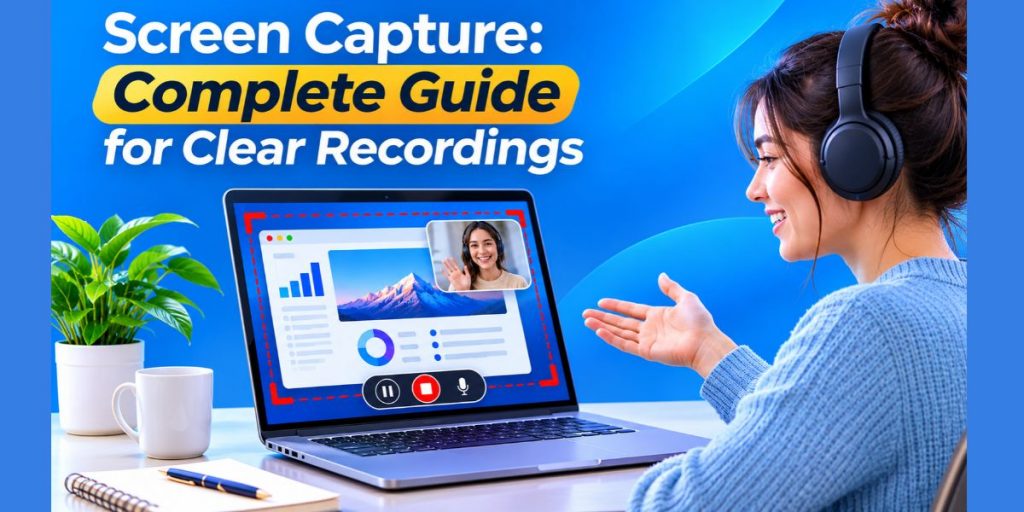
Flonnect supports desktop, browser-tab, application-window and screen + camera recording, including movable picture-in-picture webcam placement.
What Makes a Screen Recording Look Clear?
Recording quality depends on resolution, frame rate, readable UI scale and stable motion. Higher resolution helps only if viewers can still understand what is happening.
Readable Resolution
Use enough resolution to keep text and interface details sharp.
Smooth Motion
Higher frame rates help when the recording contains frequent movement.
Visible Cursor
Cursor highlighting helps viewers follow demonstrations.
Clean Workspace
Close notifications and unrelated applications before recording.
Flonnect’s main screen recorder currently supports high-resolution workflows up to 4K and frame rates up to 60fps on supported setups. For straightforward browser recording, its free online screen recorder can capture the screen directly without installing software.
Screen Capture With Audio – Choose the Right Source
Good audio usually matters more than maximum video resolution. A sharp recording with unclear narration is still difficult to follow.
Decide what the viewer actually needs to hear:
- Microphone only — tutorials and explanations
- System audio only — media demonstrations
- System + microphone — product walkthroughs, lessons and demonstrations
Before recording
Record a short test clip and listen to it with headphones. Confirm that narration is louder than system sound and that the correct microphone is selected.
Flonnect supports system and microphone audio across supported recording modes. For Windows-specific setup, see the Flonnect screen recorder with audio guide.
External reference: Chrome requires explicit camera and microphone permission before browser-based recording can use those devices.
When Should You Add a Webcam to Screen Capture?
Use webcam video when seeing the presenter improves trust, explanation or engagement. Do not add a face-cam simply because the recorder supports it.
Webcam Helps
Sales walkthroughs, online teaching, onboarding, personal updates and presentations.
Screen-Only Is Better
Technical bug reports, precise software instructions and short process demonstrations.
Flonnect lets you record screen and camera together, reposition the webcam overlay and capture screen audio and microphone audio separately for post-recording flexibility. Its screen and webcam recording guide covers this workflow in more detail.
Why No-Watermark Screen Recording Matters
A watermark can make a customer-facing tutorial, product demo or course recording look less polished.
Flonnect’s browser recorder currently provides watermark-free output and does not require sign-up for basic browser recording. The current Flonnect screen-recording feature also lists unlimited recording without a watermark.
That makes Flonnect especially useful when the final video needs to look clean enough for client communication, education, sales demos or public tutorials.
Browser Recorder or Desktop Recorder?
Use the browser for speed. Use the desktop recorder when the capture needs deeper system access or a longer production workflow.
| Need | Flonnect Browser | Flonnect Desktop |
|---|---|---|
| Quick tutorial | Excellent | Good |
| Browser tab | Excellent | Good |
| System workflow | Depends on browser access | Better fit |
| Screen + webcam | Supported | Supported |
| Fast sharing | Excellent | Supported |
When Do You Need More Complex Recording Software?
Advanced production tools are useful when you need manual encoder control, complex scenes, streaming layouts or multiple audio devices.
For example, OBS Studio provides detailed control over recording quality, encoders, multiple desktop audio devices and microphone inputs.
For creators, educators, SaaS teams and remote workers who mainly need to record, explain, edit and share without configuring a production environment, Flonnect offers a simpler workflow while still supporting high-quality screen, webcam and audio capture.
Best Screen Capture Setup by Use Case
Product Demo
Tab or window + microphone + optional webcam.
Online Lesson
Screen + webcam + clear microphone narration.
Bug Report
Application window + microphone explanation.
Team Update
Screen + camera + instant share link.
Clear Screen Recording Checklist
✓ Capture only the required tab, window or screen
✓ Close notifications and unrelated applications
✓ Increase interface text size when needed
✓ Select the correct microphone
✓ Enable system audio only when viewers need it
✓ Position webcam away from important controls
✓ Record a short test clip
✓ Review before sharing
Record With Flonnect
Capture the screen, explain clearly and share faster.
Flonnect gives creators, educators and teams screen recording, webcam capture, audio, editing, transcripts and sharing without forcing a complex production setup.
Frequently Asked Questions
What is screen capture?
Screen capture records or captures activity displayed on a screen. Video screen capture can include the desktop, an application, browser tab, audio and webcam video.
Can Flonnect record screen and audio together?
Yes. Flonnect supports screen recording with microphone and system audio across supported recording modes. Audio availability can depend on the selected browser, operating system and capture mode.
Can Flonnect record screen and webcam at the same time?
Yes. Flonnect supports simultaneous screen and webcam capture with a movable picture-in-picture camera overlay.
Does Flonnect add a watermark?
Flonnect’s current browser recorder and screen-recording feature pages state that recordings can be downloaded without a watermark.
Can I record without installing software?
Yes. Flonnect provides an online browser recorder for screen, webcam and presentation capture. The Chrome extension and desktop apps add broader workflows when needed.
What resolution should I use for screen recording?
Use a resolution that keeps text and interface elements readable at the viewer’s expected playback size. Flonnect supports HD recording and higher-resolution workflows up to 4K on supported setups.
Is Flonnect easier than OBS for screen recording?
They serve different needs. OBS offers deeper manual control for streaming, scenes, encoders and advanced audio setups. Flonnect focuses on faster screen capture, webcam recording, editing, transcription and sharing for everyday work, tutorials and demos.