AI Video Editing
Quick Answer
The best AI noise removal tools help clean screen recordings by reducing background hum, fan noise, keyboard sounds, room echo, and other distractions without making speech sound unnatural. For most creators, marketers, and support teams, the best setup is a tool that combines noise cleanup with captions, trimming, and quality improvements. If you want an all-in-one workflow, Flonnect AI Video Editor is a practical option because it supports faster edits, cleaner recordings, and a smoother publish-ready workflow.
A screen recording can contain useful information and still feel hard to watch. The reason is often not the content itself, but the audio. Background noise, laptop fans, keyboard clicks, room echo, low voice clarity, and inconsistent sound levels can make a tutorial, demo, support walkthrough, or sales video feel less professional than it should.
That is why AI noise removal has become important in modern video editing software. Instead of fixing sound manually for every video, creators and teams can now use AI to clean voice audio, improve listening quality, generate captions, trim dead parts, and move from raw recording to final edit much faster.
Simple truth: Better audio often improves watchability faster than flashy editing effects. When viewers can hear clearly, they stay longer and understand more.
Table of Contents
Why AI Noise Removal Matters for Screen Recordings
Screen recordings are usually made in real work environments, not professional sound studios. That means background noise is common. A tutorial recorded from a home office may include fan sound, a support video may have keyboard noise, and a webinar clip may include room echo or inconsistent voice quality.
Cleaner tutorials
Clearer voice makes product tutorials and walkthroughs easier to follow.
Better support videos
Support teams can explain issues faster when the recording sounds professional.
Stronger marketing content
Demos, product explainers, and social clips feel more polished with clean audio.
This is why creators increasingly look for more than just a noise filter. They want an AI video editor or video editing software that can improve video quality, fix sound, trim extra sections, and support publishing faster.
What AI Noise Removal Can Actually Fix
AI noise removal is not just one button. In a good workflow, it helps remove distractions while keeping the speaker’s voice understandable and natural.
| Problem | How AI Helps | Why It Matters |
|---|---|---|
| Fan or hum noise | Reduces steady background noise | Makes the voice easier to hear |
| Keyboard clicks | Softens repeated mechanical sounds | Improves tutorial quality |
| Room echo | Helps reduce hollow voice sound | Makes speech feel more direct |
| Low voice clarity | Enhances voice focus | Useful for demos and webinars |
| Messy long recordings | Pairs with trims, captions, and summarization | Speeds up editing and publishing |
This is where tools that combine cleanup with an auto caption generator, smart trimming, and AI video summarizer features can be more useful than one-purpose tools.
Best AI Noise Removal Tools to Try
There is no perfect tool for every team, but some tools are better depending on whether your main goal is quick editing, clean speech, screen recordings, podcast cleanup, or full publishing workflow.
| Tool | Best For | Why It Stands Out |
|---|---|---|
| Flonnect AI Video Editor | Screen recordings and team workflows | Combines editing, cleanup, and workflow speed |
| Adobe Podcast Enhance | Voice cleanup | Good for spoken audio clarity |
| Descript | Text-based editing | Useful for editing video like a document |
| Krisp | Live noise suppression | Useful before recording and during calls |
| VEED | Fast browser editing | Good for quick captions and cleanup |
| CapCut | Short-form edits | Popular for social-ready video editing |
1. Flonnect AI Video Editor
Flonnect is a strong option for teams that work with screen recordings, product videos, training content, and support walkthroughs. The main advantage is not only cleanup but workflow. You can move from raw recording to cleaner output faster without depending on multiple disconnected tools. For users who want AI noise removal plus editing speed, it is a practical choice.
2. Adobe Podcast Enhance
Adobe Podcast Enhance is widely used for making speech sound cleaner and more focused. It is especially useful when the main issue is voice quality rather than a full video workflow. It works well for creators who need a quick voice improvement pass.
3. Descript
Descript is useful if you like editing through text. It combines transcription, editing, and cleanup in one workflow. This can be helpful for webinars, podcasts, demos, and explainer videos where transcript-led editing saves time.
4. Krisp
Krisp is helpful earlier in the process, especially during live calls or recordings. Instead of only fixing audio after the fact, it can reduce noise before or during capture. This makes it useful for remote work, support teams, and online meetings.
5. VEED and CapCut
These are strong choices when speed matters. They are especially popular for creators making social content, short explainers, or lighter edits. They may not always offer the deepest audio workflow, but they are accessible and fast for everyday editing needs.
How to Choose the Right Tool Without Overthinking It
Instead of choosing based only on brand name, choose based on workflow. Ask what job the tool needs to do most often.
- If you mainly fix voice clarity, choose a strong audio cleanup tool.
- If you publish tutorials or demos, choose a tool with captions, trims, and screen-recording-friendly editing.
- If your team edits lots of videos every week, choose workflow speed over fancy effects.
- If you want to improve video quality overall, look for a tool that helps with sound, structure, captions, and compression.
- If summaries and quick reuse matter, look for AI video summarizer support or transcript-based workflows.
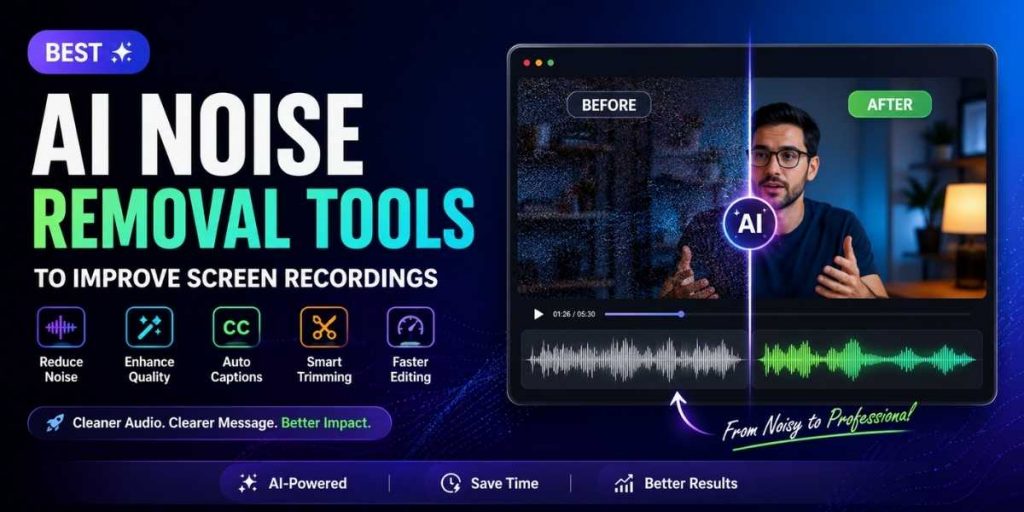
Before and After AI Edit Workflow for Better Screen Recordings
A strong editing result usually comes from a short repeatable workflow, not a single magic tool. Use this simple before-and-after approach when working on screen recordings.
- Record as cleanly as possible: Use a decent microphone and reduce background noise before recording.
- Run AI noise cleanup first: Remove steady hum, echo, and distracting sounds before deep editing.
- Trim dead sections: Remove pauses, mistakes, loading screens, and filler explanation.
- Add captions: Use an auto caption generator so viewers can follow the video more easily.
- Check quality and export size: Keep the video clean without making the file unnecessarily heavy.
- Summarize or repurpose: Use short summaries or clipped highlights for support, training, or social promotion.
This type of workflow is useful for screen recordings because it improves clarity while also reducing production time. Instead of doing cleanup, captions, trims, and exports separately, you aim for one smooth pass.
Edit cleaner videos without a slow workflow
Use Flonnect AI Video Editor to clean recordings, improve watchability, and speed up your screen-recording workflow from raw file to publish-ready video.
Common Mistakes People Make with AI Noise Removal
| Mistake | Why It Hurts | Better Fix |
|---|---|---|
| Cleaning too aggressively | Voice may sound robotic or thin | Keep speech natural, not overly processed |
| Ignoring captions | Viewers miss important details | Add captions after audio cleanup |
| Fixing audio but keeping long dead space | Video still feels slow | Trim aggressively where needed |
| Using many tools for one small edit | Workflow becomes slower than necessary | Use a tool that covers multiple needs |
| Skipping final quality check | Small audio issues remain unnoticed | Review the full output once before publishing |
Final Thoughts
The best AI noise removal tool is the one that helps you make videos clearer without slowing your workflow down. For some users, that means a voice cleanup tool. For others, it means full video editing software that can clean audio, trim recordings, add captions, and improve final quality from one place.
If your work depends on tutorials, support videos, product walkthroughs, or screen recordings, an all-in-one AI workflow is usually more efficient than fixing every issue manually. That is why tools like Flonnect are useful: they help you turn raw recordings into cleaner, more watchable content with less friction.
FAQs
What is AI noise removal in video editing?
AI noise removal is a feature that reduces unwanted sounds like hum, echo, fan noise, and other background distractions while keeping the main voice clearer. It is commonly used in screen recordings, tutorials, webinars, and product demos.
Can AI noise removal improve screen recordings?
Yes. It can make screen recordings easier to hear and more professional by reducing distracting background noise. When combined with captions and trimming, it can improve the full viewing experience.
Which tool is best for AI noise removal and editing together?
If you want one workflow for cleanup, trims, and editing, Flonnect AI Video Editor is a good option for screen-recording-based content. If you only need speech cleanup, voice-focused tools may also work well.
Do I still need captions after cleaning the audio?
Yes. Clean audio helps, but captions improve comprehension, accessibility, and silent viewing. A strong workflow uses both audio cleanup and an auto caption generator.
What else should I improve besides noise removal?
Besides noise removal, improve video quality by trimming pauses, checking compression, adding captions, and organizing the content better. For longer recordings, AI summarizer-style workflows can also help save time.