Quick Answer
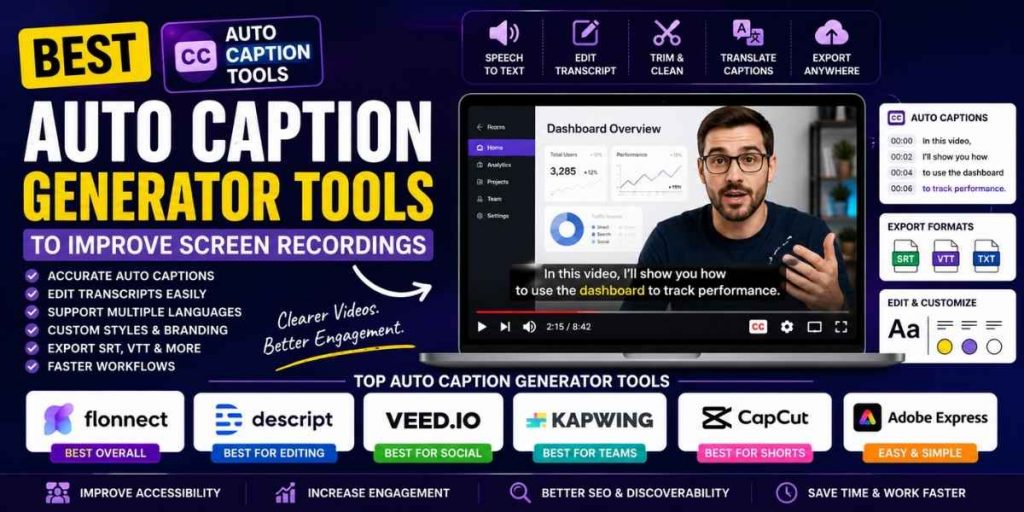
- Flonnect: Best for recording, captions, trimming and sharing in one workflow.
- Descript: Best for editing screen recordings through the transcript.
- VEED: Best for styled and translated social captions.
- Kapwing: Best for branded captions and team content.
- CapCut: Best for animated captions on short-form videos.
An auto caption generator converts spoken audio into timed on-screen text. The best tools also let you correct the transcript, trim unnecessary sections, improve audio quality and export captions in formats such as SRT or VTT.
Why Add Captions to Screen Recordings?
Muted viewing
Viewers can follow tutorials, product demos and support videos without turning on sound.
Clearer instructions
Technical terms, menu names and step numbers remain visible while the action happens.
Better accessibility
Captions support viewers who are deaf, hard of hearing or more comfortable reading the content.
Faster review
A searchable transcript helps teams locate important explanations without replaying the complete recording.
For a cleaner source file, start with Flonnect’s screen recorder to capture the screen, webcam, microphone and system audio together.
Best Auto Caption Generator Tools Compared
| Tool | Best for | Caption strengths | Consider before choosing |
|---|---|---|---|
| Flonnect | Tutorials, demos and support recordings | Speech-to-text captions, transcription, trimming, noise reduction and sharing | Best suited to video-first team workflows |
| Descript | Transcript-based video editing | Automatic transcription, captions, filler-word removal and text-based cuts | The broader editor may be more than users need for basic captions |
| VEED | Social videos and multilingual captions | Dynamic styles, phrase highlighting, translation and timing edits | Some advanced translation and export options depend on the plan |
| Kapwing | Brand-controlled captions and team projects | Editable transcripts, caption presets, animations, translation and subtitle downloads | Free usage limits may affect longer recordings |
| CapCut | Short-form and animated social captions | Automatic timing, custom fonts, effects, motion and collaborative review | Animated styles can distract from technical screen recordings |
| Adobe Express | Simple captioned marketing videos | Automatic transcription, editable captions, fonts, effects and MP4 exporting | Less specialised for long screen-recording documentation |
Which Auto Caption Tool Should You Choose?
1. Flonnect: Best overall for screen-recording workflows
Flonnect combines automatic captions with smart trimming, background-noise removal, visual corrections and video summarisation. Its AI video editor is useful when a rough recording needs more than a subtitle file.
2. Descript: Best for editing by changing text
Descript suits creators who want to correct the transcript and remove unwanted speech through a document-style editing experience. It also includes tools for improving sound and removing filler words.
3. VEED: Best for multilingual social content
VEED is practical when captions need animated emphasis, language translation and platform-specific formatting for social-media campaigns.
4. Kapwing: Best for reusable branded styles
Kapwing provides editable transcripts, numerous caption styles and Brand Kit controls. It works well for teams that need the same fonts, colours and subtitle design across many videos.
5. CapCut: Best for animated short-form captions
CapCut offers strong motion effects and text styling for Reels, Shorts and TikTok videos. Use restrained styling for tutorials so animations do not cover buttons or interface labels.
6. Adobe Express: Best for simple marketing edits
Adobe Express keeps the process simple: upload the video, generate captions, correct the wording, select a font style and continue editing the project.
How to Add Auto Captions to a Screen Recording
Use the original recording
Upload the highest-quality version available. A clear microphone recording produces a stronger starting transcript.
Generate the transcript
Use Flonnect’s AI transcription feature to create timestamped text, identify speakers and export TXT, SRT, VTT or JSON files.
Correct important wording
Review product names, URLs, acronyms, numbers and interface labels. Never publish the first automated transcript without checking it.
Trim the recording
Remove failed takes, repeated explanations and long silence before finalising the caption timing.
Style captions for readability
Use a clear font, sufficient contrast and short lines. Keep captions away from controls, navigation bars and other important interface elements.
Export and test
Preview the complete video on desktop and mobile. Use Flonnect’s video compression tool when the approved recording is too large to share easily.
Before and After Caption Editing
| Before | After |
|---|---|
| Long caption covers the software interface | Text is divided into shorter lines and moved away from controls |
| Product names are transcribed incorrectly | Technical terms match the spoken explanation and screen labels |
| Captions remain visible after the speaker stops | Timing follows the natural beginning and end of each phrase |
| Every filler word appears on screen | The final text stays accurate without unnecessary verbal clutter |
Fast Caption and Trim Workflow
1. Improve the audio before generating the final transcript.
2. Correct names, numbers and technical terminology.
3. Remove failed takes and repeated explanations.
4. Regenerate or retime captions after major cuts.
5. Keep each caption short enough to read quickly.
6. Watch the final video once with the audio muted.
When you already have a subtitle file, use Flonnect’s subtitle tools to add, extract or remove caption tracks locally in the browser.
How Captions Should Change by Video Type
| Video type | Caption priority | Avoid |
|---|---|---|
| Tutorial | Correct terminology and readable step instructions | Captions covering menus or buttons |
| Product demo | Benefit-focused phrases and clean visual hierarchy | Repeating every word already visible on the screen |
| Support video | Precise error messages, settings and troubleshooting steps | Animated text that distracts from the solution |
For complex software walkthroughs, convert the recording into an interactive product demo so users can follow clickable steps at their own pace.
Auto Caption Quality Checklist
□ Product names and technical terms are correct
□ Captions match the final edited audio
□ Each line can be read before it disappears
□ Text has enough contrast against every scene
□ Captions do not hide buttons or interface labels
□ Speaker changes are clear when multiple people talk
□ The video remains understandable when muted
Frequently Asked Questions
What is the best auto caption generator for screen recordings?
Flonnect is a strong option when you need screen recording, transcription, captions, AI editing, compression and sharing within one workflow.
Are automatic captions completely accurate?
No. Accuracy varies with audio quality, accents, overlapping speakers and technical vocabulary. Always review the final transcript.
Should I use burned-in captions or an SRT file?
Burned-in captions always remain visible. SRT or VTT files allow supported platforms and viewers to switch captions on or off.
Should captions be generated before or after trimming?
Generate an early transcript to guide editing, but finalise the timing after the major cuts are complete.
Can auto captions improve video quality?
Captions improve clarity and accessibility rather than picture resolution. Use an AI video editor for noise reduction, trimming, colour correction and visual enhancement.
Flonnect AI Video Editor
Turn rough screen recordings into clear, captioned videos.
Generate captions, correct transcripts, remove distracting pauses, improve audio and prepare tutorials, demos and support videos faster.