Meeting Recording & Transcription
Quick Answer
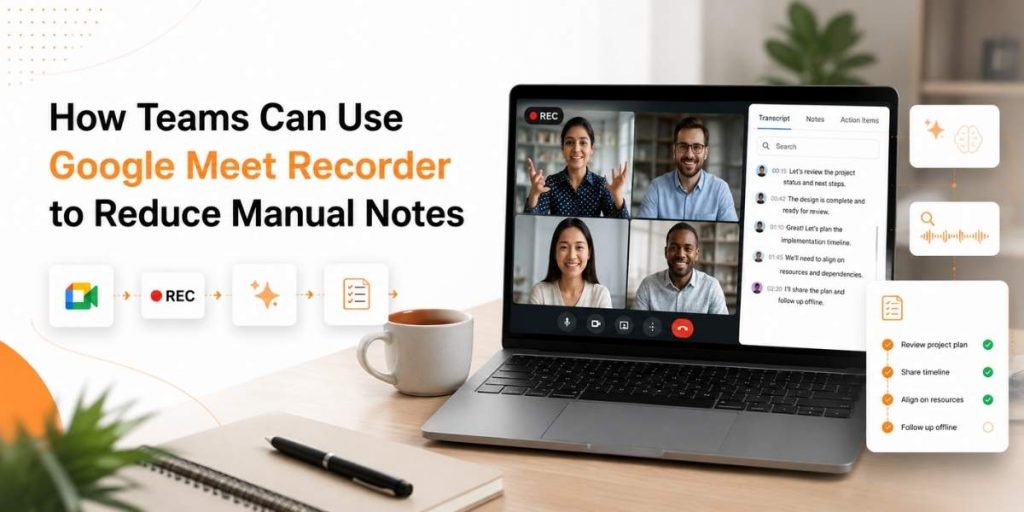
A Google Meet recorder helps teams reduce manual notes by capturing the meeting, creating a transcript, identifying speakers, summarizing key points, and turning discussion into action items. Instead of relying on memory or rushed notes, teams can record once, review later, search the transcript, and share clear follow-ups with people who missed the meeting.
Most teams do not have a meeting problem. They have a memory problem after the meeting ends. Decisions get discussed, blockers are mentioned, next steps are agreed, and then everyone leaves with a slightly different version of what happened.
That is why a reliable Google Meet Recorder is useful for remote teams, managers, educators, consultants, and client-facing teams. It helps capture the conversation, save the recording, generate transcripts, and make follow-up easier without depending only on manual note-taking.
This guide is not about recording meetings just for storage. It is about building a meeting memory system. The goal is to reduce missed notes, find decisions faster, create searchable transcripts, and make async follow-up simple for everyone involved.
4
Meeting outputs to capture
Recording, transcript, summary, and action items give teams a clearer post-meeting record.
3
Teams that benefit quickly
Remote teams, educators, and consultants can use recordings to reduce follow-up confusion.
1
Searchable meeting source
A transcript turns a meeting from a forgotten call into a referenceable team asset.
Note: These are workflow benefits, not fixed performance claims. Results depend on meeting quality, team adoption, and follow-up process.
Table of Contents
The Real Reason Manual Meeting Notes Keep Failing
Manual notes fail because the person taking notes is also trying to participate. A manager may be listening for decisions. A consultant may be watching client reactions. An educator may be answering questions. A remote teammate may be presenting and trying to capture action items at the same time.
The result is predictable. Notes become selective. Action items lose context. Important objections are shortened into vague bullet points. People who missed the meeting get a summary, but not the reasoning behind the decision.
Meeting team note: Manual notes are useful, but they should not be the only record. A meeting recorder gives teams the source material behind the notes, so details can be checked later instead of guessed.
| Manual Note Problem | What Happens After the Call | How Recording Helps |
|---|---|---|
| Missed decision | Team debates what was agreed | Recording gives the original discussion |
| Vague action item | Owner, deadline, or scope is unclear | Transcript helps verify the task context |
| Missed objection | Follow-up ignores the real concern | Recorded conversation captures the nuance |
| Absent teammate | They rely on second-hand updates | They can review the recording or summary async |
The Meeting Moments Your Team Should Never Lose
Not every meeting needs the same level of documentation. A quick status sync may only need a summary. A client discussion, hiring interview, class session, product review, or consulting call deserves a stronger record because the context matters later.
Decisions
Capture what was decided, why it was decided, and what options were rejected.
Action items
Record who owns the next step, what needs to happen, and when it should be done.
Customer language
Keep exact customer phrases for product feedback, objections, training, or support context.
Best rule: Record meetings where the cost of misunderstanding is higher than the cost of storage. Client calls, project reviews, training sessions, and decision meetings are usually worth recording.
From “Who Took Notes?” to a Meeting Memory System
A better meeting process does not ask one person to remember everything. It creates a flow where recording, transcript, summary, and follow-up each have a role. That way the meeting becomes easier to review, not just easier to store.
Flonnect’s AI Meeting Copilot is built around this idea. It supports meeting transcription, automatic summaries, action items, searchable meeting records, and collaboration across Google Meet, Zoom, and Microsoft Teams.
Recording keeps the full context
The recording is the source of truth. It lets teams go back to the exact moment when a decision, objection, or explanation happened.
Transcript makes the meeting searchable
The transcript helps teams find names, topics, feature requests, project blockers, and commitments without replaying the full call.
Summary turns conversation into follow-up
A summary should highlight the decisions, risks, questions, owners, and next steps that people need after the meeting.
Why Searchable Transcripts Beat Messy Meeting Minutes
Meeting minutes often look clean, but they hide what was left out. A transcript is different. It keeps the raw conversation available, so people can search for the exact moment when something was discussed.
For teams that need more than a basic recording, Flonnect’s video and audio transcription feature can support searchable meeting records, customer conversations, training sessions, and review workflows.
| Meeting Output | Best Use | Risk if Missing |
|---|---|---|
| Recording | Full context review | People rely only on memory |
| Transcript | Search and verification | Details become hard to find |
| Summary | Fast recap | Absent teammates lose context |
| Action items | Execution | Follow-up becomes unclear |
Turn every important meeting into searchable follow-up
Use Flonnect to record Google Meet sessions, capture transcripts, review summaries, and share meeting outcomes with your team.
Async Follow-Up: The Part Most Teams Forget After Recording
Recording is only useful when people know what to do with it. A long video link without a summary can become another thing nobody watches. Good async follow-up turns the recording into a short, useful package.
Flonnect’s broader screen recorder workflow is helpful here because teams can record screen, webcam, and audio for demos, tutorials, product walkthroughs, training content, and meeting follow-ups.
| Follow-Up Asset | What It Includes | Who Needs It |
|---|---|---|
| Meeting recap | Decisions, discussion points, blockers | Managers and remote teams |
| Action item list | Owner, task, deadline, dependency | Project teams |
| Clip or timestamp | Relevant moment from the recording | Absent stakeholders |
| Transcript link | Searchable meeting text | Consultants, educators, and documentation teams |
How Different Teams Use Google Meet Recordings Without Creating More Work
The same Google Meet recorder can support different workflows. A manager may need accountability. An educator may need lecture review. A consultant may need client documentation. A customer success team may need searchable customer feedback.
Remote teams
Use recordings and summaries to keep people aligned across time zones without repeating the same meeting.
Managers
Review decisions, blockers, and ownership after planning calls, weekly reviews, and stakeholder meetings.
Educators
Share lesson recordings, transcript notes, and review material with students who need to revisit the session.
Consultants
Keep client calls, requirements, objections, and decision history available for future project reference.
For teams that need browser-based recording, Flonnect’s screen recorder extension guide explains how recording from Chrome, Firefox, and Edge can support browser-first workflows.
The Flonnect Workflow: Record, Transcribe, Summarize, Reuse
A useful meeting workflow should be simple enough for busy teams. If recording needs ten setup steps, people will avoid it. If follow-up needs too much manual cleanup, the recording will sit unused.
Record the meeting with the right context
Capture screen, audio, and discussion so the meeting record includes the visual and spoken context.
Use transcript and summary for faster review
Review the transcript for details and use the summary to understand decisions, discussion themes, and next steps quickly.
Turn action items into follow-up
Convert the discussion into owners, tasks, timelines, and shared context so the meeting leads to execution.
When a meeting explains a process, use Flonnect Step Recorder to document actions, screenshots, and step-by-step workflows that can later become training material or internal SOPs.
Google Meet Recording Checklist Before You Hit Record
A good recording starts before the meeting begins. The team should know why the meeting is being recorded, what needs to be captured, and how the output will be used after the call.
Before and after the meeting, confirm these:
- The meeting has a clear reason to be recorded.
- Participants understand your team’s recording and privacy process.
- The right screen, tab, window, or meeting view is captured.
- Audio is clear enough for transcription and review.
- The transcript is checked for important names, decisions, and action items.
- The summary includes decisions, blockers, owners, and deadlines.
- The recording is shared only with the right people.
- Reusable insights are saved to a searchable meeting library.
If your team is still choosing a setup, Flonnect’s pricing page can help compare plan options for meeting recording, transcription, editing, storage, and related recording workflows.
Reduce manual notes with smarter meeting recording
Use Flonnect to record Google Meet sessions, create searchable transcripts, review meeting summaries, extract action items, and keep your team aligned after every call.
FAQs
What is a Google Meet recorder?
A Google Meet recorder is a tool that captures Google Meet sessions as video and audio. Depending on the tool, it can also create transcripts, summaries, speaker notes, and action items for easier follow-up.
How can teams reduce manual notes after meetings?
Teams can reduce manual notes by recording important meetings, generating transcripts, creating summaries, extracting action items, and sharing follow-up notes after the meeting ends.
Can I record Google Meet with audio?
Yes. A meeting recorder can capture meeting audio along with the screen or meeting window. Make sure your audio settings are selected correctly before recording.
Why are transcripts useful after Google Meet calls?
Transcripts make meetings searchable. They help teams find decisions, questions, feature requests, customer feedback, objections, and action items without replaying the entire recording.
Who should use a Google Meet recorder?
Remote teams, managers, educators, consultants, customer success teams, trainers, and client-facing teams can use a Google Meet recorder to capture important discussions and improve follow-up.
What should be included in a meeting summary?
A useful meeting summary should include the main topics, decisions, blockers, action items, owners, deadlines, open questions, and any links or recordings needed for review.