
Bug Reporting & QA
Quick Answer
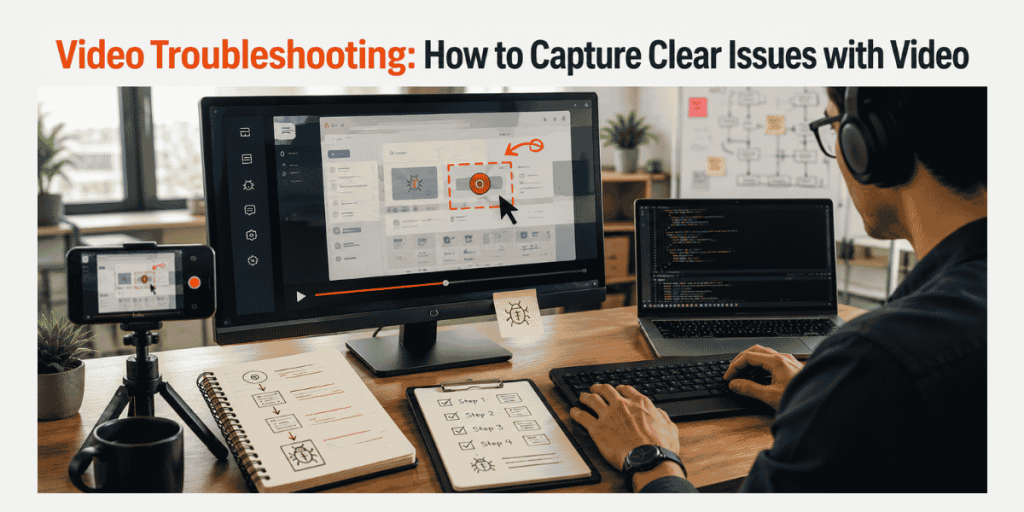
Video troubleshooting helps QA teams, developers, product managers, and IT support teams capture software issues clearly. A strong video bug report should show the screen, steps to reproduce, expected result, actual result, annotations, browser/device context, and any useful logs so developers can understand the issue without repeated follow-up questions.
Bug reports often fail because the issue is hard to imagine from text alone. A tester writes “button is not working,” a developer asks where, the product manager asks which flow, and the team loses time recreating the problem.
That is why Flonnect Bug Reporting is useful for teams that need visual proof, faster reproduction, and clearer developer collaboration. Instead of sending scattered screenshots and long explanations, teams can capture the issue as it happens and package it into a cleaner report.
This guide shows how to use video troubleshooting to create bug reports that are easier to read, easier to reproduce, and easier for developers to act on. The goal is not just to record the bug. The goal is to remove confusion from the handoff.
5
Bug evidence points
Video, steps, expected result, actual result, and technical context make reports easier to resolve.
3
Teams that need it most
QA, product, and IT support teams benefit when issues are visual or hard to reproduce.
1
Developer-ready handoff
A clear video report gives developers the context they need before opening the code.
Note: These are workflow guidelines, not fixed performance claims. The quality of bug resolution still depends on issue complexity, team process, and technical context.
Table of Contents
Why Text-Only Bug Reports Slow Everyone Down
Text-only bug reports depend on perfect explanation. That rarely happens. The tester may miss a step. The developer may test a different browser. The product manager may not understand the user journey. The issue stays open because everyone is looking at a different version of the problem.
Video troubleshooting fixes this by showing the bug in motion. The developer can see the path, timing, error state, and user behavior. That matters because many bugs only appear after a certain sequence of clicks, form inputs, device states, permissions, or browser behavior.
QA team note: If a bug needs more than three sentences to explain, record it. The video will usually communicate the problem faster than a long written description.
| Text Report Problem | What Developers Still Need | How Video Helps |
|---|---|---|
| Vague issue summary | Where and when it happened | Shows the exact user journey |
| Missing steps | How to reproduce the issue | Captures the full click path |
| No visual proof | What the user actually saw | Records the broken behavior directly |
| Weak environment detail | Browser, OS, screen size, logs | Adds context to the visual report |
The Bug Report Evidence Developers Actually Need
A good video bug report is not just a screen recording. It is a structured explanation that helps the developer reproduce the bug and understand its impact. The video should show what happened, but the report should also explain why it matters.
Steps to reproduce
Show the full path from the starting point to the issue. Do not begin recording after the bug has already happened.
Expected vs actual result
Explain what should have happened and what happened instead. This helps developers understand the gap.
Technical context
Include browser, OS, device, user role, build version, test environment, and logs wherever possible.
Best rule: A developer should be able to watch the video, read the short report, and understand the next debugging step without asking the tester to explain again.
How to Record the Issue Without Making the Video Too Long
A useful troubleshooting video should be short, but not incomplete. Record from the starting point, show the important clicks, pause at the broken behavior, and stop when the issue is clear. Do not record five extra minutes of unrelated testing.
For QA-specific workflows, Flonnect’s screen recorder for QA testers page explains how testers can record bug reports and reproduction steps with video evidence, visual proof, and clearer developer communication.
Start before the bug appears
Begin recording from the screen or workflow where a developer would start testing. This helps them reproduce the issue from the same entry point.
Move slowly through key steps
Fast cursor movement makes bug videos hard to follow. Move slowly enough for someone to understand the clicks, fields, and selections.
Stop after the issue is proven
Once the bug is visible and the behavior is clear, stop recording. A focused two-minute video is better than a long recording with extra noise.
A Bug Report Template That Works With Video
The best bug reports combine video with a short structured template. The video shows the issue. The template explains the context. Together, they reduce back-and-forth between QA and development.
For process-heavy issues, Flonnect Step Recorder can help document the exact actions, screenshots, and troubleshooting steps involved in the issue. This is useful when a bug needs repeatable step documentation, not just a video clip.
| Bug Report Field | What to Add | Why It Helps |
|---|---|---|
| Short title | One-line defect summary | Makes the issue easy to scan |
| Video link | Screen recording of the issue | Shows the behavior directly |
| Steps to reproduce | Numbered path to trigger the bug | Helps developers recreate it |
| Expected vs actual | What should happen vs what happened | Clarifies the defect |
| Environment | Browser, OS, device, build, logs | Supports faster debugging |
Capture clearer bug reports with Flonnect
Use Flonnect to record visual bug reports, document steps to reproduce, share issue context, and help developers understand software problems faster.
From Bug Video to Developer-Ready Handoff
A recorded issue becomes more valuable when it is packaged for the person fixing it. Developers need the fastest route from report to reproduction. Product managers need impact and priority. QA teams need traceability. IT teams need enough context to check the environment.
Handoff rule: Never send only a video link. Send the video with title, severity, steps, expected result, actual result, and environment context.
| Recipient | What They Need | Best Handoff Format |
|---|---|---|
| Developer | Reproducible steps and logs | Video + numbered steps + environment |
| Product manager | Impact and affected flow | Video + short user impact note |
| QA lead | Repeatability and priority | Video + severity + test environment |
| IT support | User setup and error state | Video + device/browser context |
Where Video Troubleshooting Helps Different Teams
Video troubleshooting is not only for QA testers. It also helps product teams understand real user friction, support teams explain technical issues, and developers review behavior without needing a live walkthrough every time.
QA teams
Record failed test cases, regression issues, UI glitches, and cross-browser problems with repeatable evidence.
Product managers
Use videos to understand the user flow, business impact, and priority before assigning work.
Developers
Review exact behavior, user path, environment, and logs before reproducing locally.
IT support
Capture user-side issues, setup problems, permissions, error screens, and troubleshooting paths.
For quick browser-based reports, Flonnect’s screen capture for Chrome guide explains how screen capture can support bug reports, quick updates, demos, tutorials, and visual explanations.
The Flonnect Flow: Capture, Mark, Explain, Share
A bug reporting workflow should be easy enough to use during real testing. If testers need to stop, open multiple tools, create screenshots, write long notes, and manually explain everything, the report quality drops.
Capture the issue visually
Record the screen from the start of the workflow through the broken behavior so the issue is visible and repeatable.
Mark what matters
Use notes, annotations, or supporting context to point developers toward the exact failed state or unexpected behavior.
Share the report with context
Send the video with steps, environment, logs, severity, and expected result so developers can investigate with fewer follow-up questions.
If your bug report needs to become an interactive walkthrough for stakeholders, Flonnect’s interactive demo capture workflow can help turn recorded flows into shareable demos, product tours, and visual walkthroughs.
Video Troubleshooting Checklist Before You Send the Bug
Before sharing a bug report, check whether the developer can reproduce it from your information. A clear report should reduce questions, not create new ones.
Before you submit the issue, confirm these:
- The video starts before the bug appears.
- The steps to reproduce are clear and numbered.
- The expected result is explained.
- The actual result is visible in the recording.
- The issue severity or user impact is included.
- Browser, OS, device, build, and test environment are mentioned.
- Logs, error messages, or console details are attached if relevant.
- Sensitive data is hidden before sharing.
For broader recording workflows, Flonnect’s screen recorder can also support product demos, tutorial videos, customer support walkthroughs, and internal training clips alongside QA reporting.
Create clearer bug reports with video troubleshooting
Use Flonnect to capture issues visually, document reproduction steps, add context, and help developers understand bugs faster.
FAQs
What is video troubleshooting?
Video troubleshooting is the process of recording a screen issue, workflow error, bug, or technical problem so another person can see what happened and understand how to reproduce it.
Why is video useful for bug reporting?
Video shows the exact user path, timing, clicks, error state, and broken behavior. This makes it easier for developers to reproduce and understand the issue compared with text-only reports.
What should a video bug report include?
A video bug report should include a screen recording, steps to reproduce, expected result, actual result, environment details, severity, and supporting logs or screenshots if needed.
How long should a bug report video be?
A bug report video should be long enough to show the issue clearly, but short enough to stay focused. In most cases, record only the path needed to reproduce the bug and stop once the issue is visible.
Who should use video troubleshooting?
QA testers, developers, product managers, IT support teams, customer support teams, and agencies can use video troubleshooting to capture issues more clearly and reduce back-and-forth.
How does Flonnect help with bug reporting?
Flonnect helps teams record screen issues, capture reproduction steps, document technical problems, and share clearer visual reports with developers, QA teams, product managers, and support teams.