
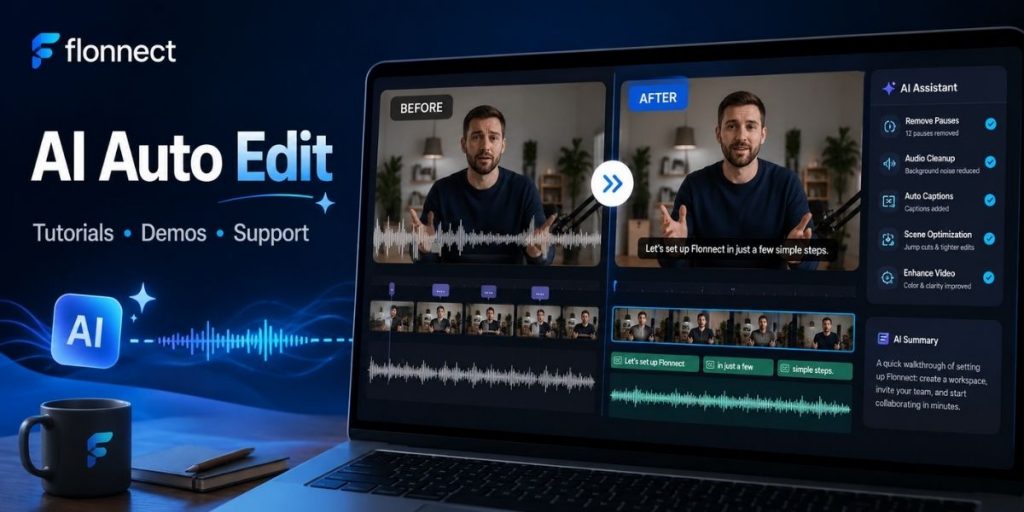
Quick Answer
- AI auto edit is best for repetitive cleanup: pauses, filler words, captions, noise, framing and basic visual corrections.
- Edit tutorials for clarity, demos for persuasion and support videos for speed to resolution.
- Trim the recording before compressing or exporting it.
- Generate captions automatically, but always review product names and technical terms.
- Keep important pauses and explanations instead of blindly accepting every AI cut.
- Use AI to create the first polished version, then let a human approve what the viewer actually needs.
AI video editing has moved beyond “add captions automatically.” Modern tools can now find silence, remove filler words, clean background noise, detect scenes, improve lighting, reframe footage and create a tighter first cut before a human touches the timeline.
That is where AI auto edit becomes genuinely useful. The goal is not to let AI make every creative decision. It is to remove the repetitive editing work that sits between a useful recording and a video people can actually follow.
AI Auto Edit Workflow
What Does AI Auto Edit Actually Do in 2026?
Think of AI auto editing as an intelligent cleanup pass over raw footage.
| Editing Task | What AI Can Help With | Human Check |
|---|---|---|
| Trimming | Remove silence, failed takes and dead space | Did an important pause disappear? |
| Captions | Speech-to-text and timed subtitles | Are names and technical terms correct? |
| Audio | Reduce background noise and improve clarity | Does the voice still sound natural? |
| Visuals | Brightness, contrast, colour and framing | Are screen details still readable? |
| Structure | Scene detection and highlight identification | Does the story still make sense? |
| Output | Cropping, reframing and platform versions | Does the final format fit the audience? |
Flonnect’s own AI video editing prompt guide adds another useful layer: instead of manually adjusting every edit, users can describe the intended result with instructions such as trimming pauses, cleaning audio and adding subtitles.
The 2026 Shift: AI Editing Is Moving From Single Features to Full Cleanup Passes
Recent competitor updates show where the category is going. Descript now combines filler-word removal, audio cleanup, lighting fixes and automatic editing suggestions. VEED’s current auto-edit workflow combines silence removal, noise cleanup, captions, B-roll and platform resizing.
That changes the way teams should think about AI editing.
Old Workflow
Trim → captions → noise removal → crop → colour → export
AI Auto Edit Workflow
Ask AI for a first cleanup pass → review the changes → make only the edits that require judgment
That final review is important. AI can identify silence. It cannot always know whether the silence is awkward dead space or a deliberate pause that helps the viewer absorb an important step.
Before vs After: What Should AI Actually Improve?
| Raw Recording | AI-Edited Version |
|---|---|
| 35 seconds of setup before the tutorial begins | Video starts close to the useful explanation |
| Several “um,” “uh” and repeated phrases | Cleaner speech without sounding robotic |
| Laptop fan and room noise | Clearer voice with background noise reduced |
| No captions | Readable subtitles aligned to the edited audio |
| Dark webcam image | Balanced brightness and contrast |
| Large 4K file sent to support customer | Trimmed, approved and compressed delivery version |
A Better AI Auto Edit Workflow: CUT → READ → CLEAN → CHECK → EXPORT
Delete failed takes, dead setup time, repeated explanations and unnecessary silence.
A transcript makes filler words, repetition and unclear sections easier to spot.
Reduce distracting noise, correct lighting where useful and reframe only when composition needs it.
Confirm that technical terms, pauses, steps and product screens remain accurate.
Choose resolution, file size and aspect ratio based on where the video will be watched.
Do trimming before compression. Flonnect’s recent video file size guide explains why removing unwanted footage first is better than compressing every recorded second and throwing away quality unnecessarily.
How to Auto Edit Tutorial Videos
Tutorial editing should protect the learning sequence.
Good AI edits:
- Remove setup delays before the lesson begins.
- Cut repeated attempts.
- Generate captions.
- Reduce background noise.
- Highlight clean scene boundaries.
- Trim unrelated discussion.
Edits to review carefully:
- Pauses immediately after an important click.
- Slow cursor movement showing where a setting is located.
- Repeated explanations that may actually help beginners.
- Zoom or crop changes that hide important interface elements.
If you are creating the recording from scratch, combine this workflow with Flonnect’s recent tutorial creator guide: plan one outcome, record one complete lesson and then let AI remove confusion rather than trying to rescue an unfocused recording afterward.
How to Auto Edit Product Demos
A demo has a different job from a tutorial. It does not need to teach every possible setting. It needs to show enough of the product for the viewer to understand the value.
Useful demo edit structure:
Problem → important screen → key action → visible result → next step
Use AI to shorten navigation between those moments. A 12-second wait while a page loads may be honest, but the viewer usually does not need to experience it in real time.
For teams creating both AI-generated scenes and real product footage, Flonnect’s AI video creation workflow recommends using actual screen recordings when a demo needs product proof rather than relying only on generated visuals.
How to Auto Edit Customer Support Videos
Support videos should be edited around time to resolution.
If a customer asks, “How do I change this setting?” the finished video should not begin with company history, a long greeting and two minutes of unrelated navigation.
Keep:
- One sentence of context
- The exact screen path
- The setting or fix
- What the customer should see afterward
- The next action if the issue remains
Flonnect’s AI customer support video guide uses the same rule: one issue per video, clear screen movement and a specific next step.
Auto Captions Need a Human Quality Check
Automatic transcription has become good enough to make caption generation extremely useful—but not reliable enough to skip review.
Pay particular attention to:
- Product names
- People and company names
- Technical terminology
- Numbers and pricing
- Keyboard shortcuts
- Error messages and menu labels
Flonnect’s July 2026 auto caption generator comparison adds an important workflow detail: use an early transcript to help with editing, but finalize caption timing only after the major cuts are complete.
Use Specific Auto-Edit Instructions, Not “Make This Better”
Prompt-based editing becomes much more useful when the instruction explains the job of the video.
Weak Prompt
“Make this video professional.”
Better Tutorial Prompt
“Remove setup time and long pauses, keep the important pauses after each click, reduce background noise and generate accurate captions.”
Better Demo Prompt
“Cut waiting time, keep the problem-to-result flow, improve voice clarity and create a concise version focused on the feature outcome.”
What Should You Not Fully Automate?
AI auto edit works best when the repetitive decisions are automated and the high-context decisions stay human.
| Safe to Automate First | Review Manually |
|---|---|
| Long silence detection | Instructional pauses |
| Caption generation | Caption accuracy |
| Background noise reduction | Final voice quality |
| Scene suggestions | Narrative order |
| Cropping recommendations | Whether critical UI remains visible |
Key Rule
Auto edit does not mean auto publish. Treat AI’s result as the first polished cut—not the final approval.
How Flonnect AI Auto Edit Fits the Workflow
Flonnect AI Video Editor currently brings several of these cleanup tasks into one editing workflow.
Its live product page lists:
- AI Auto Editing for trimming and refining footage.
- Smart Scene Detection for identifying useful sections.
- Speech-to-Text Captions for automatic subtitles.
- Background Noise Removal for clearer audio.
- Color Correction for brightness, contrast and colour adjustment.
- Auto Cropping and Framing to improve composition.
- Filler/Pause Cleanup for tighter spoken videos.
- Video summaries and highlight detection for longer content.
Flonnect AI Edit Workflow
Upload or record → AI auto edit → trim pauses → clean audio → generate captions → correct visuals → review → compress/export → share
For teams producing many business videos, the recent Flonnect guide to content creation tools recommends treating video as a reusable workflow—script, record/generate, edit and repurpose—rather than treating every video as a completely new production.
Before/After AI Edit Checklist
7 AI Auto Edit Mistakes to Avoid
Viewers need time to understand important steps.
Technical terms still need human review.
Aggressive processing can make speech sound unnatural.
A visually centered video can still become a worse tutorial.
You reduce quality on footage you may delete anyway.
Tutorials, demos and support replies have different goals.
AI can accelerate editing, but the creator still owns accuracy.
Turn rough recordings into clearer videos without rebuilding every edit manually.
Use AI to trim pauses, improve audio, generate captions, refine framing and prepare tutorials, demos and support videos for faster sharing.
Frequently Asked Questions
What is AI auto edit?
AI auto edit uses artificial intelligence to automate repetitive editing tasks such as trimming silence, detecting scenes, adding captions, improving audio, correcting visuals and reframing footage.
Can AI completely edit a video automatically?
AI can create a strong first edited version, but humans should still review the final sequence, captions, technical accuracy, pacing and creative decisions before publishing.
Is AI auto editing useful for tutorial videos?
Yes. It is particularly useful for removing setup time, failed attempts, long silence and background noise while generating captions. Important teaching pauses should be reviewed manually.
Can AI improve video quality?
AI editors can improve brightness, contrast, colour balance, framing and audio clarity. They cannot recover every detail lost in a badly recorded source file, so good recording quality still matters.
Should I add captions before or after editing?
Generate an early transcript if it helps guide editing, but finalize caption timing and wording after the major video cuts are complete.
Should I compress a video before editing?
Usually no. Trim unnecessary footage first, finish major edits and captions, then compress the approved version for its final delivery channel.
How does Flonnect AI auto edit work?
Flonnect uses AI-assisted trimming, scene detection, captions, noise reduction, cropping, framing and visual correction to speed up common editing tasks for tutorials, demos, educational content and support videos.