
Quick Answer
- Flonnect: Best all-round option here for Teams recording, transcription, summaries and action items.
- Microsoft Teams: Best for organizations that prefer native Microsoft 365 recording and storage.
- Fireflies.ai: Useful for cross-platform AI meeting notes and integrations.
- tl;dv and Otter.ai: Strong choices for searchable transcripts and AI notes.
- OBS Studio: Best for manual local recording when AI notes are not required.
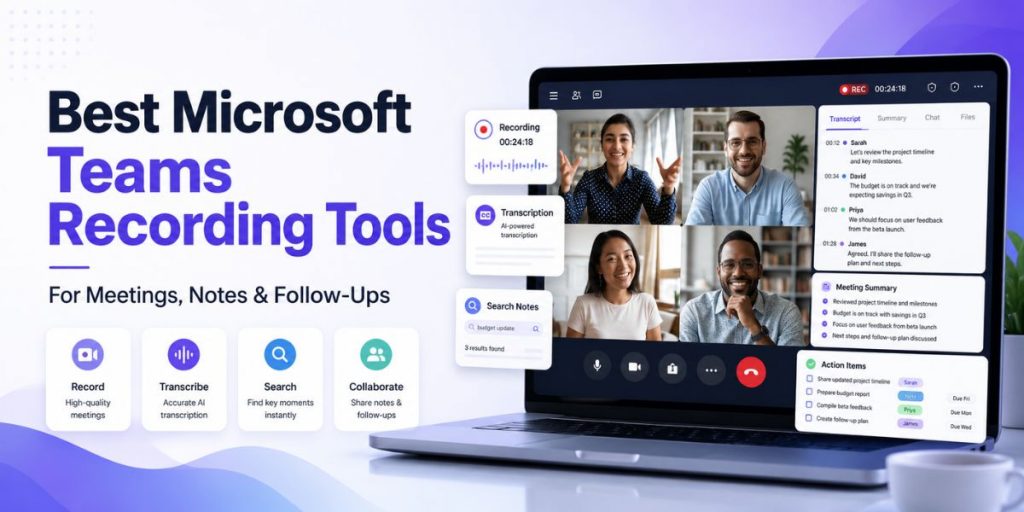
The best Microsoft Teams recording tool should do more than save a long video. It should help you recover decisions, search what was said, identify action items and create a useful follow-up without replaying the whole meeting. This is the same meeting-memory approach explained in Flonnect’s recent lecture recording guide.
In This Guide
What Should a Microsoft Teams Recording Tool Actually Do?
A meeting recorder is useful only if the information remains usable after the call. Before choosing a tool, check whether it can support these five outputs:
- Recording: Preserve audio, video and shared screen context.
- Transcript: Search names, decisions, customer feedback and questions.
- Summary: Understand the meeting without replaying 45–60 minutes of video.
- Action items: Convert discussion into owners, tasks and deadlines.
- Sharing: Give absent teammates the context they need asynchronously.
If your team wants these outputs in one workflow, Flonnect’s broader Meeting Recorder combines recording, transcription, notes, meeting minutes and sharing.
6 Best Microsoft Teams Recording Tools
| Tool | Best For | Recording Style | Main Advantage |
|---|---|---|---|
| Flonnect | Teams needing recording + follow-up | Browser, desktop or meeting assistant | Transcript, summary and action items |
| Microsoft Teams | Microsoft 365 organizations | Native cloud recording | Microsoft 365 integration |
| Fireflies.ai | Integration-heavy teams | Bot and other capture methods | Cross-platform meeting intelligence |
| tl;dv | Teams wanting searchable meeting history | Meeting capture | Video, transcript and AI summaries |
| Otter.ai | Live transcription and notes | AI notetaker | Searchable transcripts |
| OBS Studio | Manual local recording | Desktop capture | Detailed audio/video control |
1. Flonnect — Best for Recording, Notes and Follow-Ups Together
Flonnect is the strongest fit for the workflow in this guide because teams can capture a meeting through the browser extension, desktop application or Notubot meeting assistant and then generate transcripts, summaries and action items. Explore the dedicated Microsoft Teams Recorder for the current recording options.
2. Microsoft Teams — Best Native Option
Teams’ built-in recorder is convenient when your Microsoft 365 permissions and organizational policies already support recording. Recordings can appear in meeting chat and are stored through OneDrive or SharePoint. Teams Recap can also bring recordings, transcripts, files, notes and follow-up material into one view.
3. Fireflies.ai — Best for Integration-Heavy Workflows
Fireflies supports Microsoft Teams alongside other meeting platforms and focuses heavily on transcription, summaries, AI analysis and downstream integrations. It is useful when meeting information needs to move into other business systems after the call.
4. tl;dv — Best for Searchable Video Meeting Records
tl;dv records, transcribes and summarizes Microsoft Teams, Zoom and Google Meet sessions. It is particularly useful for teams that want a searchable archive and need to revisit specific moments instead of replaying complete meetings.
5. Otter.ai — Best for Transcript-First Teams
Otter is a practical choice when transcription is the priority. It can transcribe Microsoft Teams meetings, create summaries and make conversations searchable, which is useful for interviews, lectures, research discussions and recurring team calls.
6. OBS Studio — Best for Manual Local Capture
OBS Studio provides detailed screen, window and audio capture controls. It is useful when you want a recording file and prefer configuring capture yourself, but you will need a separate AI video transcription or note-taking workflow if you also want summaries and action items.
Before Using Native Teams Recording, Know These Limits
Microsoft’s current documentation makes several details worth checking before an important call:
- The organizer and recording initiator need the appropriate recording permissions.
- External participants generally cannot start a standard Teams meeting recording.
- Non-channel recordings are normally stored in the organizer’s OneDrive; channel recordings use SharePoint.
- When automatic expiration is enabled, the current default is 120 days, although admins can change the policy.
- Native recordings do not capture every meeting element, including some whiteboards, annotations, shared notes and embedded presentation content.
Practical takeaway
Choose the recording method before the meeting starts. Do not discover after a client call, lecture or project review that the required audio, permissions or content was not captured.
Why Better Meeting Records Matter in 2026
47 min
Average meeting duration in Supernormal’s 2026 meeting dataset, down from 51 minutes.
46%
Of meetings in that dataset included someone from outside the company.
69%
Of AI-assisted meetings generated actionable artifacts in Supernormal’s 2026 analysis.
1.6 hrs
Average weekly post-meeting time saved with meeting summaries in Zoom’s 2026 research.
Sources: Supernormal State of Meetings 2026 and Zoom AI Companion productivity research, 2026.
These numbers point to the real opportunity: the value of a meeting recorder is not the file itself. It is how quickly the file becomes useful information. Flonnect’s video transcription tool can turn recorded discussion into text that is easier to search and review.
A Better Microsoft Teams Recording Workflow
Define the purpose, confirm recording consent, test audio and identify the decisions or questions you need to capture.
Say the owner’s name and deadline aloud: “Riya will send the revised proposal by Thursday” is easier to extract than “we’ll handle it later.”
Review names, decisions, objections, deadlines and unresolved questions. Correct important transcription errors before sharing.
Send a short recap containing decisions, action items and relevant recording or transcript links. Do not make teammates watch an entire meeting to find one answer.
Copy This Meeting Notes and Action Item Template
DATE:
PARTICIPANTS:
RECORDING LINK:
TRANSCRIPT LINK:
PURPOSE
* Why was the meeting held?
KEY DECISIONS
* Decision:
* Reason:
* Timestamp:
ACTION ITEMS
* Task:
* Owner:
* Deadline:
* Dependency:
OPEN QUESTIONS
* Question:
* Owner for follow-up:
ASYNC FOLLOW-UP
* Who needs the recap?
* What should they read/watch?
* What happens next?
For educators, the same structure works for lectures: replace action owners with assignments, revision points and next-class preparation. Flonnect’s recent guide to video based learning explains how recorded lessons can become reusable training and learning assets.
Turn your next Teams meeting into searchable follow-up
Record the conversation, create a transcript, review the summary and turn discussion into clear action items instead of relying on memory.
What If Your Team Also Uses Google Meet or Zoom?
The same recording-to-follow-up system should work across platforms. If you need to know how to record Google Meet, Flonnect’s recent Google Meet recorder guide covers recording, transcripts, summaries and async follow-up.
For teams moving between Meet, Teams and Zoom, using one meeting workflow can be easier than maintaining completely different note systems. The Flonnect Google Meet Recorder also supports browser, desktop and meeting-assistant recording options.
Do Not Confuse Recording Ability With Recording Permission
A tool may technically be able to capture a meeting, but that does not automatically mean you have legal, contractual or organizational permission to record it.
- Inform participants when required.
- Follow applicable consent laws and company policies.
- Limit access to people who genuinely need the recording.
- Review sensitive information before sharing transcripts.
- Delete recordings when they no longer have a business, training or documentation purpose.
Frequently Asked Questions
What is the best Microsoft Teams recording tool?
It depends on your workflow. Flonnect is a strong all-round choice when you need recording, transcription, summaries and action items together. Teams native recording is convenient for organizations already working entirely inside Microsoft 365.
Where are Microsoft Teams recordings stored?
Standard non-channel Teams recordings are normally stored in the organizer’s OneDrive, while channel meeting recordings are stored in the channel’s SharePoint site.
How long do Microsoft Teams recordings last?
Microsoft’s current default automatic expiration setting is 120 days for new meeting recordings and transcripts. Administrators can change the policy, and recording owners may have additional options depending on organizational settings.
Why use AI transcription with a meeting recording?
AI transcription makes a long meeting searchable. Instead of replaying the video, you can search for a person’s name, decision, deadline, objection, question or project topic and then verify it against the recording.
Should every Microsoft Teams meeting be recorded?
No. Record when losing context would create real cost—for example client calls, training, interviews, project decisions, consultations or important lessons. A five-minute informal sync may only need written notes.
What should I send after a recorded Teams meeting?
Send a concise recap containing the key decisions, action items, owners, deadlines, unresolved questions and links to the relevant recording or transcript. The goal is to help people act, not simply prove that the meeting was recorded.