Quick answer:
- Start with one clear learner outcome instead of recording everything you know about the topic.
- Break that outcome into modules, then divide each module into focused lessons.
- Choose the recording format based on what learners need to see: screen, slides, webcam, demonstration, or a combination.
- Record one lesson at a time so updates do not require recreating the entire course.
- Add captions, notes, exercises, examples, and next actions only where they improve learning.
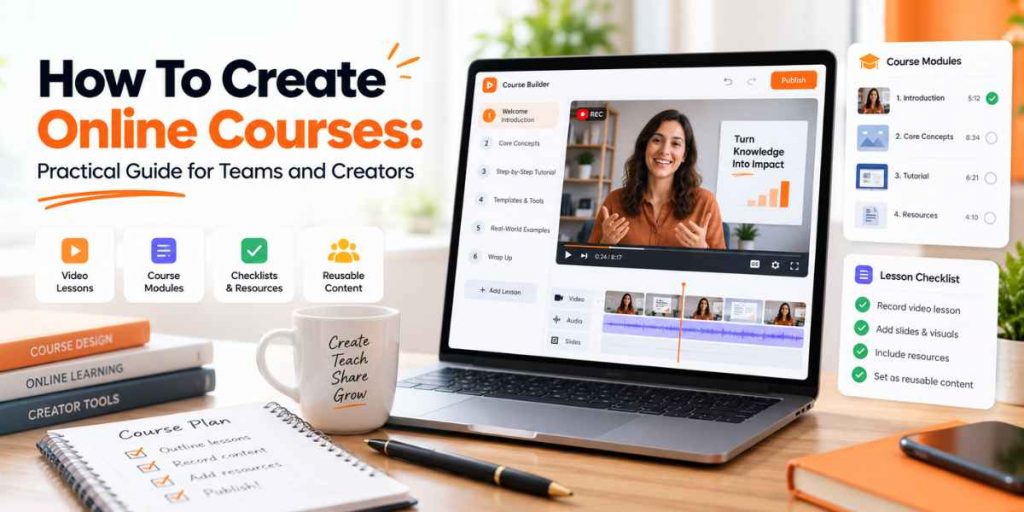
- Use Flonnect Screen Recorder to capture screen, webcam, microphone, system audio, presentations, and reusable course lessons.
Creating an online course does not begin with buying a camera or opening a video editor. It begins with a simpler question: what should the learner be able to do when the course is finished?
Once that outcome is clear, course creation becomes much easier. You can decide what needs to be taught, which lessons need video, where learners need practice, and which explanations can become reusable training assets.
This approach works for independent course creators, teachers, HR teams, internal trainers, customer-education teams, and companies building employee learning libraries. The goal is not simply to record more content. It is to record once and create something learners can use repeatedly.
Table of contents
Step 1: Start With the Learner Outcome
A weak course usually starts with a topic:
Too broad: “I want to create a course about digital marketing.”
A stronger course starts with a transformation:
More useful: “By the end of this course, a small-business marketer should be able to plan and launch a basic paid social campaign.”
The outcome becomes a filter. If a lesson does not help the learner reach that result, it may not belong in the course.
Flonnect’s existing online course creator workflow follows the same principle: define the learning goal before recording, then build focused lessons around that outcome.
Step 2: Validate What Learners Actually Need
Do not spend weeks recording a course before checking whether the audience wants the topic, understands the promise, or struggles with the problem you plan to teach.
Before production, collect evidence from:
- Customer or learner interviews
- Support tickets
- Sales questions
- Search queries
- Community discussions
- Existing workshops or classes
- Employee onboarding questions
- Feedback from a small pilot group
For a commercial course, validation means confirming that the topic solves a problem people care enough about to spend time or money solving.
For an internal training course, validation means confirming that the lesson solves a repeated skill or knowledge gap rather than simply transferring information managers think employees should know.
Step 3: Turn the Outcome Into Modules and Lessons
Think of the curriculum as a path from the learner’s current situation to the desired result.
| Module | Purpose | Example |
|---|---|---|
| 1. Foundation | Give learners essential context | Terminology, setup, prerequisites |
| 2. Core Skill | Teach the main process | Step-by-step workflow |
| 3. Practice | Let learners apply the skill | Exercise or guided task |
| 4. Application | Connect learning to real work | Case study or project |
| 5. Troubleshooting | Handle common blockers | Mistakes, FAQs, next steps |
Within each module, make individual lessons specific enough that learners can immediately understand why they should watch them.
Instead of:
Module 2 — Marketing
Use:
Lesson 2.3 — How to Build Your First Campaign Audience
If you need a more detailed lesson-planning workflow, Flonnect’s tutorial creator guide explains how to move from one learning outcome to a focused recording plan.
Step 4: Choose the Right Recording Format for Each Lesson
Not every lesson needs a talking-head video. Choose the format according to what makes the explanation easiest to understand.
| Lesson Type | Recording Format | Best For |
|---|---|---|
| Software tutorial | Screen + microphone | Tools, dashboards, coding, workflows |
| Concept explanation | Slides + voice | Frameworks, theory, models |
| Instructor introduction | Webcam | Welcome, context, trust building |
| Guided demonstration | Screen + camera | Tutorials needing instructor presence |
| Process training | Screen walkthrough | Employee and operational training |
Flonnect supports full-screen, browser-tab, application-window, screen-plus-camera, microphone, and system-audio capture. For lessons where learners benefit from seeing both the instructor and the process, use screen and camera recording with a picture-in-picture layout.
Production rule: learners need clarity more than cinematic production. Prioritize understandable audio, readable screen text, focused explanations, and clean pacing before expensive cameras or elaborate transitions.
Step 5: Use a Simple Lesson Script
A course script does not need to read like a film screenplay. For most lessons, a simple five-part structure is enough.
Outcome
Tell learners what they will be able to do after the lesson.
Context
Explain why the lesson matters and where it fits in the larger process.
Demonstration
Show the process in a logical sequence instead of jumping between ideas.
Mistake or Example
Address one common misunderstanding or show a practical example.
Next Action
Give learners something to practice, complete, review, or prepare before the next lesson.
Step 6: Edit for Clarity, Not for Decoration
Editing a course lesson should remove friction between the learner and the explanation.
Useful edits include:
- Removing long pauses
- Cutting repeated explanations
- Removing obvious mistakes
- Adding captions
- Highlighting important steps
- Adding section labels
- Improving audio consistency
- Breaking one overloaded lesson into two smaller lessons
Flonnect’s AI Video Editor can support the post-recording workflow with transcription, trimming, captions, and other editing assistance.
Step 7: Add Learning Support Around the Video
A video should not be the entire learning experience.
Depending on the course, add:
| Asset | Why It Helps |
|---|---|
| Transcript | Searchable reference and accessibility |
| Checklist | Turns explanation into action |
| Worksheet | Encourages active practice |
| Quiz | Checks understanding |
| Template | Helps learners apply the skill faster |
| Practice task | Moves learner from watching to doing |
This is especially useful in video-based learning, where the recording becomes one part of a larger learning system rather than a video learners passively watch once.
Step 8: Record Once, Then Reuse the Lesson
One of the strongest reasons to create an online course is scalability.
A useful recording can often become several assets:
| Original Lesson | Reusable Asset | Where It Can Be Used |
|---|---|---|
| Course module | Short recap | Revision library |
| Software lesson | How-to tutorial | Customer support |
| Live lecture | Replay module | Absent learners / revision |
| Process training | Onboarding lesson | New hires |
| Expert explanation | FAQ video | Knowledge base |
For workplace learning, the same principle appears in Flonnect’s corporate training video guide: reusable lessons can reduce repeated explanations across onboarding and employee training.
A Practical Course Production Workflow
Define the learner outcome → validate the problem → outline modules → create lesson goals → choose recording format → script key points → record → edit for clarity → add learning support → upload → collect feedback → update individual lessons
Notice that the workflow does not require recording the entire course in one production session.
Recording lesson by lesson makes the course easier to maintain. If a tool interface changes, an HR process gets updated, or one explanation confuses learners, you can replace that lesson without recreating everything else.
8 Common Online Course Creation Mistakes
1. Recording before defining the outcome
This often creates a library of information instead of a structured learning journey.
2. Creating one very long lecture
Focused lessons are easier to finish, replay, replace, and reuse.
3. Trying to look like a studio production
Clear audio and readable demonstrations usually matter more than cinematic editing.
4. Showing slides when learners need a demonstration
If a task happens inside software or a workflow, show the real process.
5. Explaining without practice
Give learners a task, question, example, checklist, or application step.
6. Making every lesson dependent on previous footage
Modular lessons are much easier to update individually.
7. Publishing and never reviewing
Assign review dates to lessons that contain tools, policies, pricing, regulations, or changing interfaces.
8. Treating completion as proof of learning
Use exercises, assessments, projects, or workplace outcomes to determine whether learners can apply the skill.
Online Course Creation Checklist
☐ Define the target learner.
☐ Write one clear final course outcome.
☐ Validate the problem with real learners or customers.
☐ Divide the transformation into modules.
☐ Give every lesson one main outcome.
☐ Choose screen, slides, webcam, or combined recording intentionally.
☐ Test microphone and screen readability before recording.
☐ Remove repetition and dead space.
☐ Add transcripts or captions where useful.
☐ Include practice or application.
☐ Upload lessons in a logical sequence.
☐ Ask early learners where they become confused.
☐ Reuse useful lessons across other learning workflows.
☐ Add review dates for content that can become outdated.
FAQs About Creating Online Courses
How do I create an online course for beginners?
Start with one specific learner outcome, validate that learners need it, outline the steps required to reach that outcome, turn those steps into lessons, record each lesson clearly, and add practice or supporting resources before publishing.
What equipment do I need to create an online course?
Many courses can begin with a computer, a clear microphone, a screen recorder, slides or demonstrations, and a webcam when instructor video adds value. Expensive studio equipment is not required for a useful first version.
How should an online course be structured?
Structure the course around the learner’s journey from current ability to desired outcome. Group related skills into modules, give each lesson a clear goal, and add practice, application, and troubleshooting where needed.
Should every online course lesson include video?
No. Video works well for demonstrations, explanations, walkthroughs, and instructor guidance, but some lessons may be better delivered through text, templates, worksheets, quizzes, or practical assignments.
Can I reuse online course videos for employee training?
Yes, when the lesson content overlaps. A useful software tutorial, process walkthrough, framework explanation, or product lesson can often be reused in onboarding, internal training, customer education, support, and knowledge-base workflows.
Can I create an online course without downloading recording software?
Yes. Browser-based recording tools can capture a screen, webcam, or presentation without a traditional desktop installation. Choose the workflow based on the recording quality, editing, storage, and sharing features you need.
Turn what you already know into reusable learning
Record screen, webcam, presentations, and audio to build lessons you can reuse across online courses, classrooms, employee onboarding, customer education, and training libraries.