
Documentation · SOPs · Workflow Capture
Quick Answer
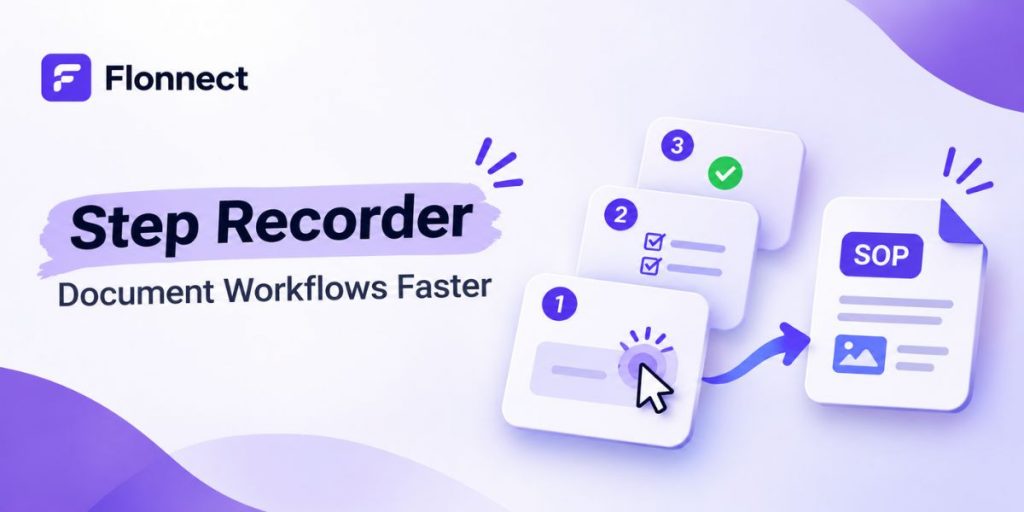
A step recorder captures a digital workflow while you perform it and turns those actions into reusable documentation. Instead of manually taking screenshots, remembering every click and writing instructions afterward, Flonnect Step Recorder captures actions, screenshots and descriptions as the process happens.
- Capture clicks, keyboard actions and window changes automatically.
- Generate screenshots and descriptions for individual steps.
- Edit the captured workflow before publishing it.
- Export documentation as a document or video.
- Start with the Flonnect Step Recorder when your team repeatedly documents software processes, SOPs, troubleshooting or training workflows.
Most workflow documentation is not difficult because the process is complicated. It is difficult because documenting the process becomes a second job.
You complete the task once, then go back through it again to take screenshots, remember each click, write instructions and organize everything into a document.
Flonnect changes that workflow. You complete the process normally while Step Recorder captures the evidence needed to turn it into a clear SOP, technical guide or training resource.
Product and methodology note
Flonnect product capabilities in this guide were checked against the current Step Recorder and interactive demo pages. Flonnect currently supports automated action logging, screenshots, generated text descriptions, customizable output and document or video export.
Time savings vary by process length, editing requirements and team standards. This guide focuses on workflow steps Flonnect can remove or automate rather than claiming an unsupported universal percentage reduction.
In This Guide
What Is a Step Recorder?
A step recorder is a process documentation tool that records actions performed on a computer and converts them into step-by-step instructions with visual evidence. The output can be used for SOPs, software documentation, troubleshooting, onboarding and training.
Flonnect Step Recorder records the workflow while you perform it rather than asking you to recreate the process afterward.
- Mouse clicks can be logged automatically.
- Keyboard actions can be recorded as part of the workflow.
- Window changes are captured.
- Screenshots provide visual context for individual steps.
- Text descriptions accompany recorded actions.
- The final guide can be refined before it is shared or exported.
Flonnect also provides dedicated screenshot guides and interactive product demos when a static SOP is not enough.
How Does a Step Recorder Make Documentation Faster?
A step recorder removes the need to document a process separately from performing it. The screenshots, action sequence and first version of the instructions are captured during the real workflow rather than reconstructed from memory.
| Documentation Task | Manual Workflow | With Flonnect Step Recorder |
|---|---|---|
| Capture actions | Write actions from memory | Actions are logged during the process |
| Screenshots | Stop and capture each screen manually | Screenshots are captured automatically |
| Step descriptions | Write every instruction from scratch | Descriptions provide a starting point |
| Sequence | Reconstruct the correct order | Captured in workflow order |
| Output | Format the final document manually | Export guide as document or video |
The important benefit is not simply “more screenshots.” Flonnect keeps the screenshots connected to the exact sequence in which the work happened.
Flonnect Workflow
The Record → Refine → Reuse Framework
The fastest documentation workflow is to capture the real process once, clean the output and reuse it wherever the same explanation is needed. Flonnect supports all three stages.
Record the Real Workflow
Choose a repeatable task and perform it normally. Flonnect captures actions and screenshots while you work.
Remove Noise
Delete irrelevant actions and keep only the steps another person needs to complete the task correctly.
Refine the Instructions
Rewrite unclear descriptions, add warnings and explain expected results at decision-heavy steps.
Choose the Right Format
Use a screenshot guide for quick reference, a PDF for formal documentation or video when users benefit from watching the process end-to-end.
Reuse the Process Everywhere
Add the guide to onboarding, a help center, internal knowledge base, QA ticket or support reply instead of explaining the workflow again.
How Do You Turn a Step Recording Into an SOP?
A captured workflow becomes an SOP when the recorded actions are combined with purpose, ownership, prerequisites, exceptions and expected outcomes. The recorder supplies the evidence. Your team supplies the business context.
| SOP Section | What to Include |
|---|---|
| Process Name | A specific action such as “Escalate a Priority Support Ticket” |
| Purpose | Why and when the workflow should be used |
| Owner | Person or team responsible for the process |
| Prerequisites | Access, software or information required first |
| Steps | Flonnect-captured actions, screenshots and descriptions |
| Exceptions | What to do when the normal path does not apply |
| Expected Result | How users know the process was completed correctly |
For a broader SOP workflow and reusable template, see Flonnect’s process documentation guide.
Which Teams Benefit Most From a Step Recorder?
Step recording is most useful when a team repeatedly performs software-based processes that other people must reproduce accurately.
Operations
- Approval workflows
- Recurring admin tasks
- Internal process handoffs
IT and QA
- Software setup
- Bug reproduction
- Troubleshooting procedures
HR and Training
- Employee onboarding
- Software tutorials
- Role-specific training
Customer Support
- Troubleshooting guides
- Ticket escalation
- Customer how-to content
Why Flonnect
Why Flonnect Is More Than a Basic Step Recorder
Flonnect is especially useful when your documentation needs to exist in more than one format. A workflow can begin as captured steps and later become a screenshot guide, formal document, video tutorial or interactive demo.
| Need | Flonnect Option | Best Use |
|---|---|---|
| Fast written workflow | Step Recorder | SOPs and internal documentation |
| Visual instructions | Screenshot Guide | Help articles and tutorials |
| Watch full workflow | Screen Recording | Training and complex explanations |
| Learn by interacting | HTML Interactive Demo | Product onboarding and guided training |
Teams that need video alongside written documentation can use the Flonnect screen recorder for full walkthroughs, tutorials and training recordings.
That combination is important. A basic step recorder solves documentation capture. Flonnect gives teams a broader documentation and communication workflow around the same process.
How Does Flonnect Compare With Dedicated Documentation Tools?
Tools in this category share a similar capture-first philosophy, but their surrounding workflows differ. For example, Scribe also automatically generates step-by-step guides with screenshots, text and cursor actions while a process is performed.
The Flonnect advantage is the wider workflow around documentation. The same ecosystem includes step recording, screen recording, screenshot guides, interactive HTML demos, video conversion, sharing and AI-powered editing.
External category reference: Scribe’s official capture workflow.
Flonnect Step Recorder
Document the workflow while you are already doing the work.
Capture actions, screenshots and step descriptions automatically, then refine the result into SOPs, training guides, troubleshooting documents or videos.
Common Step Recording and SOP Mistakes
Automated capture makes documentation faster, but it does not remove the need for editorial judgment.
Keeping Every Captured Action
Delete navigation or accidental actions that do not help another person complete the process.
Missing the Expected Result
A user should know what success looks like after an important step.
Using Video for Everything
A two-minute video can be slower to scan than six clear screenshot steps. Match the format to the task.
Never Updating the SOP
Assign an owner and review documentation when software interfaces or business rules change.
Step Recorder Checklist
✓ Choose one repeatable process
✓ Start recording before the first meaningful action
✓ Complete the process normally
✓ Remove irrelevant captured actions
✓ Rewrite unclear instructions
✓ Add warnings and expected outcomes
✓ Select screenshot guide, document, video or interactive format
✓ Assign an SOP owner
✓ Reuse the documentation across training, support and onboarding
Stop recreating the same workflow just to document it.
Flonnect captures the process while it happens, giving your team the screenshots, steps and descriptions needed to create reusable SOPs and training guides faster.
Start Step Recording With Flonnect →
Need a richer format? Explore interactive demos or the Flonnect screen recorder.
FAQ
What is a step recorder?
A step recorder captures a digital process as it happens and turns the recorded actions into step-by-step documentation. Flonnect adds screenshots and text descriptions so teams can create reusable guides without rebuilding the workflow manually.
Can a step recorder create SOPs?
Yes. A recorded workflow provides the step sequence, screenshots and initial instructions. Add ownership, purpose, prerequisites, exceptions and expected outcomes to turn the captured process into a complete SOP.
What does Flonnect Step Recorder capture?
Flonnect records workflow actions including mouse clicks, keyboard inputs and window changes. It automatically captures screenshots and creates accompanying text descriptions for the recorded steps.
Can Flonnect export a step recording?
Yes. Flonnect supports exporting step-by-step guides as documents such as PDF or as video, allowing the same workflow to support different training and documentation needs.
Is a step recorder better than screen recording?
Neither format is always better. Step-by-step screenshot documentation is easier to scan when users need one specific instruction. Video is better when motion, timing or a longer explanation matters. Flonnect supports both workflows.
Who should use Flonnect Step Recorder?
Flonnect Step Recorder is especially useful for operations, IT, QA, HR, support and training teams that repeatedly document software-based workflows, troubleshooting procedures or employee processes.
What is the main advantage of Flonnect over a basic step recorder?
Flonnect combines step recording with screenshot guides, screen recording, interactive demos, sharing and AI-powered video workflows. Teams can choose the most useful format without moving every process into a separate documentation tool.