Meeting Recording · Transcription · Async Follow-Up
Quick Answer
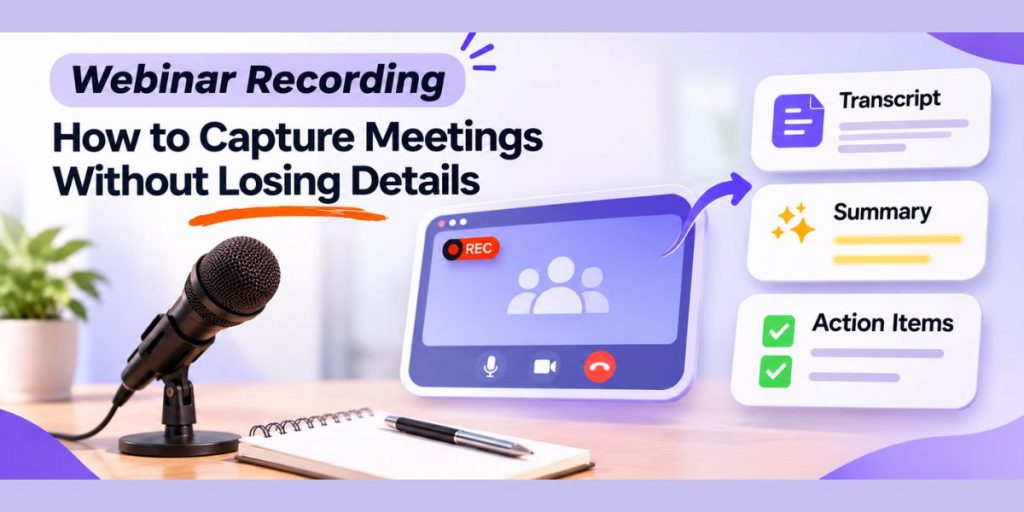
Webinar recording is most useful when it preserves more than video. A strong workflow captures the meeting, creates a searchable transcript, summarizes key decisions, extracts action items, and gives absent teammates a fast way to catch up without replaying the entire session.
- Record the full webinar or meeting with reliable audio.
- Generate a searchable transcript after capture.
- Review decisions, questions, owners and deadlines.
- Share a short recap instead of sending only a long recording.
- Use the Flonnect Google Meet Recorder when your team wants recording, transcription, summaries and action items in one workflow.
The easiest part of a webinar is pressing Record.
The harder part comes later when someone asks, “What did we decide?”, “Who owns that task?” or “Where did the client mention the deadline?”
Flonnect is built around that post-meeting problem. Instead of storing another video file, teams can turn meetings into searchable transcripts, summaries, action items and reusable async follow-up.
Recording and consent note
Technical recording ability does not automatically mean you have permission to record. Inform participants, follow applicable laws and organizational policies, and obtain consent where required.
Google Meet also supports administrator-controlled consent requirements for features such as recording, transcription and AI note taking. Recording rules can differ by platform, country, contract and organization.
In This Guide
What Is Webinar Recording?
Webinar recording is the capture of a live online meeting, presentation, training session or consultation so the discussion can be reviewed and shared later. Modern meeting recording can also create transcripts, summaries, speaker labels, searchable notes and action items.
That makes the recording useful for more than replay.
- Remote teams can review decisions without another meeting.
- Managers can verify commitments and deadlines.
- Educators can provide session replays and searchable notes.
- Consultants can preserve client requirements and approvals.
- Support and customer-success teams can revisit requests, objections and next steps.
For teams focused specifically on Google Meet, Flonnect’s Google Meet recorder guide explains how recordings, transcripts and summaries work together.
What Should Every Important Webinar Recording Produce?
A useful webinar should produce four outputs: the recording, transcript, summary and action items. Each solves a different post-meeting problem and together they turn a temporary conversation into a reusable source of truth.
01
Recording
Preserves tone, visuals, demonstrations and the full meeting context.
02
Transcript
Makes names, objections, decisions and questions searchable without replaying the video.
03
Summary
Gives attendees and absent teammates a fast overview of what mattered.
04
Action Items
Turns discussion into owners, deadlines and clear next steps.
Flonnect’s Minutes of Meeting feature can convert recorded conversations into summaries, decisions, timestamped notes and action items using customizable templates.
Flonnect Workflow
The Capture → Transcribe → Verify → Act → Share Framework
The best meeting recorder workflow does not end when the call ends. Flonnect can carry the conversation from capture through transcription, review, action-item extraction and async sharing so the meeting remains useful afterwards.
Capture the Meeting
Record the meeting with the correct audio source. For browser meetings, capture the meeting tab when tab audio is required. For desktop meeting apps, Flonnect’s desktop recorder can capture system audio.
Generate the Transcript
Convert the recorded audio into searchable text. With Flonnect Notubot, speaker diarization can also identify who said what.
Verify Important Details
AI transcription can misunderstand names, technical terms or overlapping speech. Review important decisions, dates, numbers and commitments against the recording.
Convert Discussion Into Action
Turn vague discussion into specific tasks with an owner, deadline and expected result. Flonnect can automatically extract action items from recorded conversations.
Share the Short Version
Send the decisions and action items first, then include the recording and transcript links for anyone who needs deeper context.
How Do You Record Google Meet and Zoom Meetings?
Google Meet and Zoom both provide native recording options, but availability depends on account settings and permissions. Flonnect gives teams additional browser, desktop and meeting-assistant workflows when they want recording, transcription and post-meeting AI in one place.
| Method | Best For | Important Detail |
|---|---|---|
| Google Meet Native | Eligible Workspace organizations | Recording requires supported plans and host or admin permissions. |
| Zoom Native | Organizations already using Zoom recording | Cloud transcription and retained transcripts depend on enabled account settings. |
| Flonnect Browser Extension | Google Meet or browser-based Zoom | Record the meeting tab when browser-tab audio must be captured. |
| Flonnect Desktop App | Zoom desktop, Teams and system-audio workflows | Useful when the meeting runs outside the browser. |
| Flonnect Notubot | Scheduled meetings and automated capture | Can provide speaker identification, transcription, summaries and action items. |
For Zoom specifically, use the Flonnect Zoom Meeting Recorder for browser, desktop and Notubot recording workflows.
Official platform references: Google Meet recording and Zoom transcript settings.
What Should Webinar and Meeting Notes Include?
Useful meeting notes should summarize outcomes rather than rewrite the complete transcript. Capture the purpose, major decisions, action items, owners, deadlines, unresolved questions and links back to the recording or transcript.
Copy This Meeting Notes Template
MEETING / WEBINAR TITLE:
DATE:
PARTICIPANTS:
RECORDING LINK:
TRANSCRIPT LINK:
PURPOSE
• Why was this session held?
KEY DECISIONS
• Decision:
• Reason:
• Timestamp:
ACTION ITEMS
• Task:
• Owner:
• Deadline:
OPEN QUESTIONS
• Question:
• Owner for follow-up:
ASYNC FOLLOW-UP
• Who needs the recap?
• What should they read or watch?
• What happens next?
Flonnect’s Minutes of Meeting workflow can generate and refine this structure automatically from a recorded conversation.
Who Benefits Most From Webinar Recording and Transcription?
Meeting recording creates the most value when conversations contain decisions, requirements, training material or commitments that people will need again later.
Remote Teams
- Async status updates
- Decision history
- Absent teammate catch-up
Managers
- Action-item tracking
- Project decisions
- Ownership and deadlines
Educators
- Lecture replays
- Revision transcripts
- Training archives
Consultants
- Client requirements
- Approval history
- Agreed next steps
Why Flonnect
Why Flonnect Is Better Than Saving Another Meeting Video
Flonnect treats the recording as the beginning of the workflow, not the final output. Teams can record meetings, create transcripts, summarize discussions, extract action items, search meeting content and share recordings without moving between several disconnected tools.
| Need | Flonnect Capability | Why It Matters |
|---|---|---|
| Keep full context | HD Meeting Recording | Review exactly what was shown and said. |
| Find details quickly | AI Transcription | Search text instead of replaying the full call. |
| Catch up faster | AI Summary | Get the main outcome without watching everything. |
| Move work forward | Action Item Extraction | Convert discussion into accountable follow-up. |
| Ask follow-up questions | AI Chat and Q&A | Retrieve insights from recorded meeting content. |
For teams with recurring meetings, the Flonnect AI Meeting Copilot can connect to Google Calendar or Outlook 365, detect scheduled meetings, and support automated meeting capture, transcription, summaries and action-item workflows.
Flonnect Meeting Recorder
Turn every important meeting into searchable follow-up.
Record Google Meet sessions, generate transcripts, review summaries, extract action items and share the useful version with people who need it.
Common Webinar Recording Mistakes
Most recording problems happen because teams focus on capture and ignore what happens before or after the meeting.
Recording Without Clear Consent
Always follow applicable legal, contractual and organizational recording requirements.
Capturing the Wrong Audio Source
Test tab audio, microphone and system audio before the webinar begins.
Trusting AI Notes Without Review
Verify names, dates, financial figures, commitments and technical terminology against the transcript or recording.
Sharing Only the Full Video
Send the recap, decisions and action items first. Keep the recording available for deeper context.
Webinar Recording Checklist
✓ Defined why the meeting needs to be recorded
✓ Informed participants and confirmed required consent
✓ Tested microphone, tab audio or system audio
✓ Recorded the session in the appropriate Flonnect mode
✓ Generated the transcript
✓ Reviewed important names, numbers and decisions
✓ Converted discussion into action items
✓ Added owners and deadlines
✓ Restricted recording access where necessary
✓ Shared the short recap with recording and transcript links
Stop letting important meeting details disappear after the call.
Flonnect combines meeting recording with transcription, summaries, AI insights, action items and sharing so the conversation remains useful long after everyone leaves the call.
Try Flonnect Meeting Recorder →
Also explore the AI Meeting Copilot, Minutes of Meeting, and Zoom Meeting Recorder.
FAQ
What is webinar recording?
Webinar recording captures an online meeting, presentation or training session for later review. A modern recording workflow can also generate transcripts, summaries, action items and searchable meeting notes.
How do I record a Google Meet?
Eligible Google Workspace hosts can use Google Meet’s native recording. Flonnect also supports Google Meet recording through its browser extension, desktop workflow and meeting assistant. Always follow recording and consent requirements.
How do I record a Zoom meeting?
Zoom provides native computer and cloud recording based on account permissions. Flonnect can also record Zoom through the browser extension, desktop app or Notubot meeting assistant and then generate transcripts and AI follow-up.
What is video transcription AI?
Video transcription AI converts spoken audio from a recording into searchable text. Depending on the tool, it may also identify speakers, add timestamps, summarize the conversation and extract action items.
Is a transcript better than meeting notes?
They serve different purposes. A transcript preserves the complete spoken record and is searchable. Meeting notes provide the short operational version with decisions, owners, deadlines and unresolved questions.
Can Flonnect automatically summarize a meeting?
Yes. Flonnect supports AI-generated meeting summaries and action items. Its Minutes of Meeting feature can also produce timestamped notes and structured outputs using predefined or customizable templates.
Does Flonnect work with Google Meet, Zoom and Microsoft Teams?
Yes. Flonnect provides meeting-recording workflows for Google Meet, Zoom and Microsoft Teams through browser, desktop and meeting-assistant options depending on the platform and workflow.
Are AI meeting transcripts always accurate?
No. Transcription can be affected by overlapping speech, accents, poor audio and specialized terminology. Review high-impact names, numbers, decisions and commitments against the original recording before relying on them.