Quick Answer
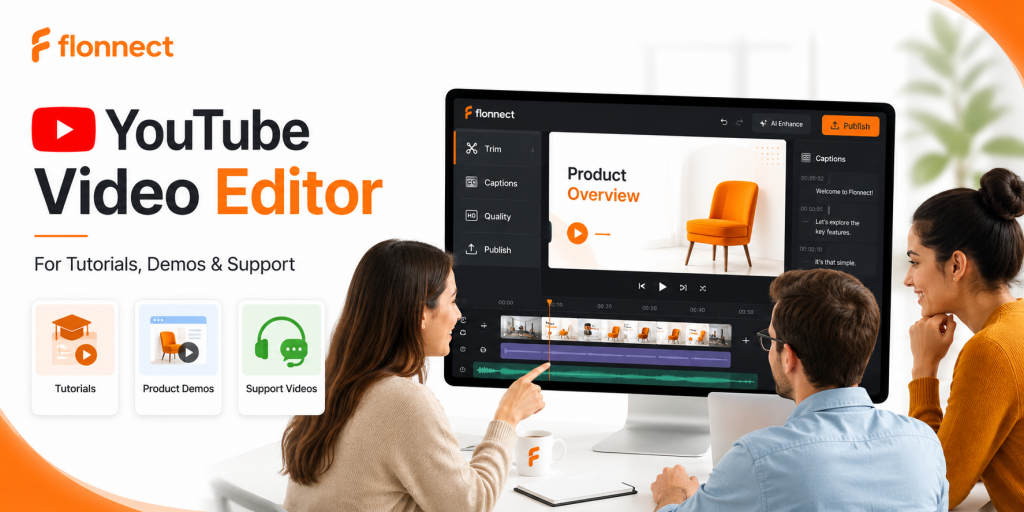
A YouTube video editor helps creators, marketers, and support teams turn raw recordings into clearer tutorials, demos, and help videos. The right workflow includes trimming slow parts, adding captions, improving video and audio quality, compressing the final file, and using AI tools to summarize or polish long recordings faster.
YouTube videos are not only for entertainment channels anymore. Teams now use YouTube for product tutorials, software demos, customer support videos, onboarding explainers, and marketing walkthroughs.
Raw recordings rarely work well on their own. Pauses, unclear audio, long explanations, missing captions, and low-quality visuals can make even a helpful video feel hard to watch.
A better editing workflow fixes this problem. With the help of an AI video editor, teams can trim, caption, summarize, improve quality, and publish more useful YouTube videos without using complicated video editing software.
In This Guide
What a YouTube Video Editor Helps You Do
A YouTube video editor helps you prepare a recording for public viewing. It can remove unnecessary parts, improve pacing, add captions, fix audio issues, improve video quality, and make the final video easier to understand.
For tutorials, demos, and support videos, editing is not about adding fancy effects. The main goal is clarity. Viewers should understand what is happening, why it matters, and what step they should follow next.
1
Trim
Remove pauses, mistakes, repeated lines, and slow sections.
2
Caption
Add subtitles so viewers can follow without sound.
3
Polish
Improve audio, visuals, framing, and final quality.
Simple definition
A YouTube video editor turns rough video footage into clear, structured, and publish-ready content for viewers.
Why Tutorials, Demos, and Support Videos Need Better Editing
A tutorial has to teach. A product demo has to persuade. A support video has to solve a problem quickly. Each format has a different job, so each one needs a slightly different editing approach.
When these videos are not edited well, viewers lose patience. Long pauses, unclear steps, weak audio, and missing captions make the video feel less useful, even when the information is correct.
| Video Type | Viewer Expectation | Editing Priority |
|---|---|---|
| Tutorial | Clear learning steps | Captions, zoom-ins, trims, and step labels |
| Product demo | Fast understanding of value | Strong opening, clean flow, callouts, and CTA |
| Support video | Quick problem resolution | Short runtime, issue summary, captions, and compression |
Editing rule
Do not edit every video the same way. A tutorial needs structure, a demo needs momentum, and a support video needs speed.
Edit YouTube-ready videos faster with Flonnect
Use AI-powered editing to trim rough recordings, add captions, improve quality, and polish tutorials, demos, and support videos.
Step-by-Step YouTube Video Editing Workflow
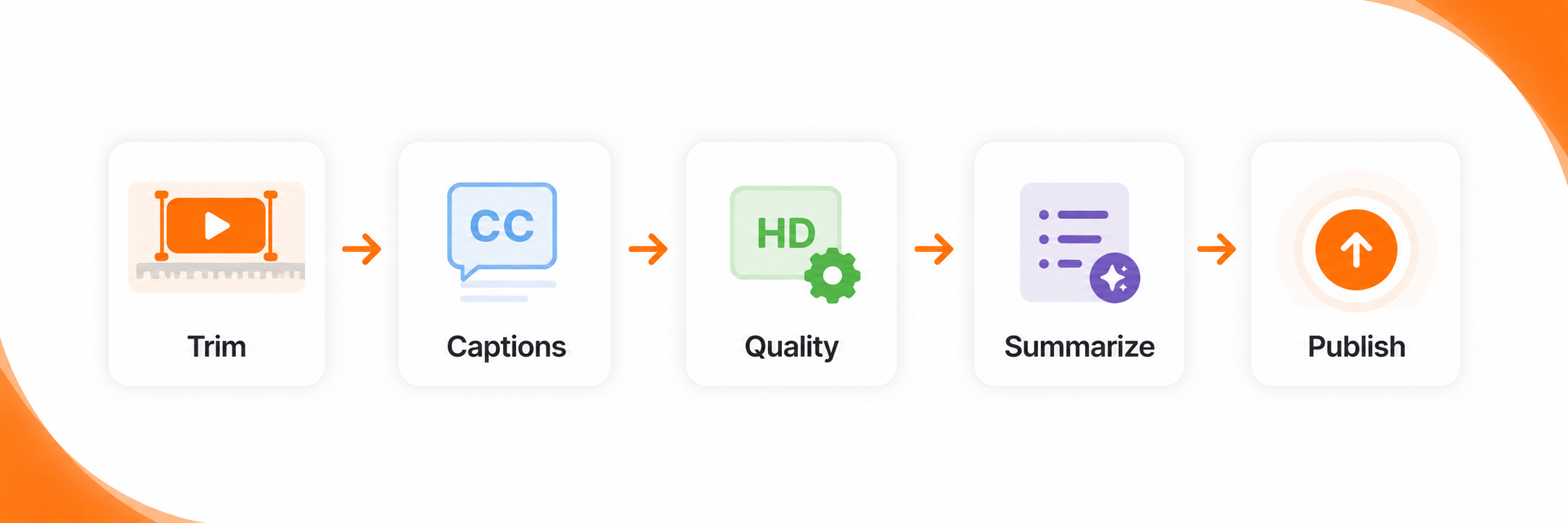
A good editing workflow should make the video easier to watch, not more complicated. Start with the message, remove anything that slows the viewer down, and polish only what supports clarity.
Clean the opening first
Cut long greetings, setup delays, and repeated introductions. Viewers should know what the video will help them do within the first few seconds.
Trim pauses and repeated steps
Remove blank spaces, loading time, hesitation, and duplicated explanations. This is especially important for screen recordings and support walkthroughs.
Add captions and step labels
An auto caption generator can make videos easier to follow, especially when people watch without sound. For tutorials, short labels like “Step 1” or “Export file” improve clarity.
Improve video and audio quality
Use quality fixes to improve video quality, balance brightness, reduce background noise, and make the recording look more professional.
Summarize long recordings
An AI video summarizer can help identify key points from long demos, tutorials, or support sessions. Use the summary to create chapters, descriptions, or shorter clips.
Compress and publish
Before uploading, export the video in the right format and compress it if needed. A smaller, clear file is easier to upload, share, and reuse across channels.
Before and After: What Better Editing Fixes
The value of editing becomes clear when you compare the raw version with the finished version. Small changes can make a tutorial, demo, or support video feel much more useful.
| Editing Area | Before Editing | After Editing |
|---|---|---|
| Captions | Viewers must rely only on audio | Subtitles make the video easier to follow |
| Trims | Long pauses and repeated explanations | Clearer pacing and shorter runtime |
| Quality | Dark visuals or noisy audio | Better lighting, clarity, and sound |
| Summary | Long recording with no clear structure | Key points become easier to reuse |
Best practical approach
Edit for the viewer, not for decoration. If an edit makes the video clearer, faster, or easier to act on, keep it.
How to Edit Tutorials, Demos, and Support Videos
Every video type needs a different editing lens. A creator making a tutorial should not edit like a marketer making a demo, and a support team should not produce a help video like a brand campaign.
Tutorial videos
Keep the steps visible and easy to follow. Add captions, zoom into important actions, remove pauses, and use simple section labels when the process has multiple stages.
Product demos
Lead with the problem, show the product action quickly, and remove anything that distracts from the value. A clear CTA at the end helps viewers know what to do next.
Support videos
Start with the exact issue, show the fix, and keep the runtime short. If the recording includes private data, blur or remove it before sharing.
Where Flonnect Fits in the YouTube Editing Workflow
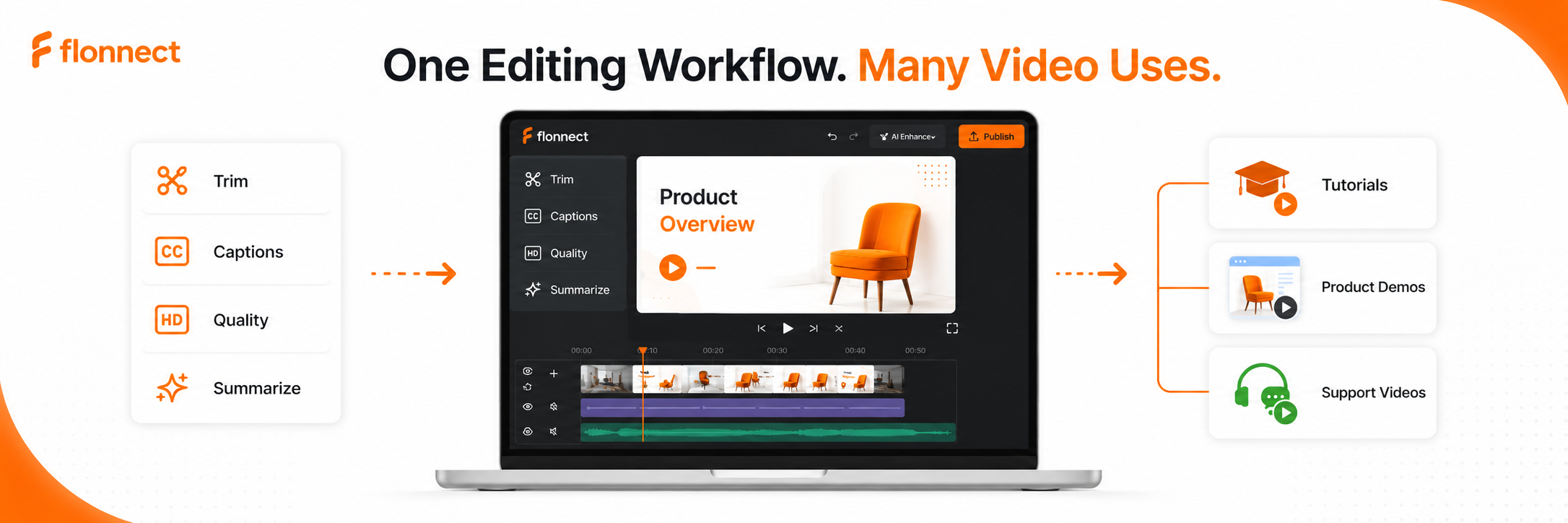
Flonnect is useful when your team needs a faster way to polish videos without handling every edit manually. The Flonnect AI video editor supports smart editing, captions, auto enhancements, and video cleanup for teams that publish tutorials, demos, and support content.
If you are building a broader content system, connect this editing process with your overall AI video workflow. Teams creating social clips can also use short-form ideas from the best AI short video creator guide.
| Editing Need | Manual Problem | Flonnect Workflow |
|---|---|---|
| Trimming | Finding weak sections takes time | Use smart editing to remove pauses and rough moments. |
| Captions | Manual subtitles slow down publishing | Generate captions to improve accessibility and clarity. |
| Quality fixes | Lighting and audio issues reduce trust | Enhance visuals and clean up audio for a polished result. |
| Repurposing | One long video is hard to reuse | Turn recordings into clearer clips, summaries, and reusable assets. |
Workflow tip
Create one polished YouTube version first. Then reuse the same content as a short clip, help article visual, sales demo, or support follow-up.
Mistakes to Avoid When Editing YouTube Videos
Mistake 1: Keeping the recording too long
Long videos can work, but unnecessary length hurts clarity. Remove anything that does not help the viewer understand or act.
Mistake 2: Skipping captions
Many viewers watch without sound or need text support. Captions also make tutorials and support videos easier to scan.
Mistake 3: Over-editing simple videos
Too many effects can distract from the message. Clear captions, clean cuts, and strong audio often matter more than flashy transitions.
Mistake 4: Forgetting the final CTA
After watching, viewers should know the next step. Ask them to try a feature, watch another video, contact support, or visit a product page.
Pre-Publish Checklist for YouTube Videos
Before publishing, check:
✓ Is the opening clear within the first few seconds?
✓ Did you trim pauses, mistakes, and repeated points?
✓ Are captions readable and accurate?
✓ Is the audio clear enough for learning or support?
✓ Does the video explain one main idea or process?
✓ Is the file compressed and ready to upload?
✓ Does the ending include a useful next step?
Create clearer YouTube videos with Flonnect
Use Flonnect to trim, caption, enhance, summarize, and polish tutorials, product demos, and support videos faster.
For creators, marketers, educators, product teams, and customer support teams.
Frequently Asked Questions