Quick Answer
- Create each lesson around one clear learning outcome.
- Use screen recording for processes, webcam for human guidance and slides for structured teaching.
- Keep modules focused so learners can replay the exact explanation they need.
- Add captions, examples, recaps and a clear next action.
- Record once, then reuse the lesson across classes, onboarding, courses and refresher training.
An educational content creator turns knowledge into lessons that people can understand, revisit and apply. That may mean recording a lecture, demonstrating software, explaining a process, creating an onboarding module or building an online course. The strongest workflow is not to produce more videos—it is to create focused learning assets that remain useful after the first session.
Educational Content Workflow
What Does an Educational Content Creator Do?
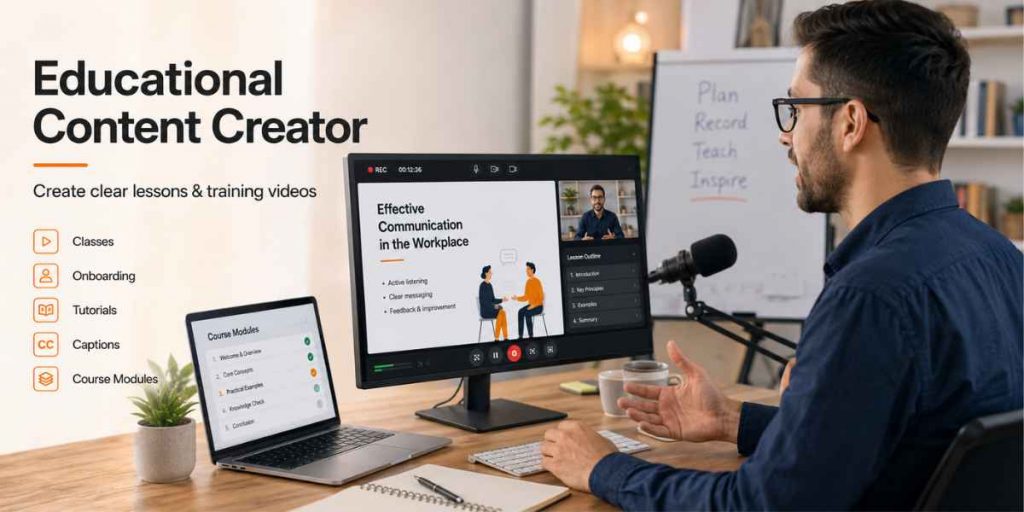
An educational content creator plans, records, organizes and improves material designed to teach a skill or concept. The role may belong to a teacher, HR professional, subject expert, instructional designer, trainer or independent course creator.
The finished content can include:
- Recorded lectures and class replays
- Software tutorials and screen walkthroughs
- Employee onboarding and process training
- Online course modules and certification lessons
- Student feedback and assignment explanations
- Refresher videos, SOP support and knowledge-base lessons
The goal is not simply to record information. The creator must decide what learners need to know, what they should see and what they should be able to do after watching.
Simple Rule
If you explain the same lesson or process repeatedly, turn the clearest version into a reusable learning asset.
Why Scalable Learning Content Matters
Recent workplace learning and skills research published in 2025.
91%
Continuous Learning
L&D professionals say it matters more than ever
63%
Skills Barrier
Employers cite skill gaps as a transformation barrier
50%
Workforce Trained
Completed training through L&D initiatives
47%
AI Training
Employees who report receiving workplace AI training
Sources: LinkedIn Workplace Learning Report 2025, World Economic Forum Future of Jobs Report 2025 and KPMG Global AI Study 2025.
These figures show why schools, course businesses and employers need learning systems that can be updated and reused. A recorded lesson does not replace teachers or trainers. It protects their best explanations from disappearing after one live session.
Choose the Right Educational Video Format
The recording format should match the learning task. A software process needs a different visual structure from a leadership lesson or classroom explanation.
| Lesson Type | Best Recording Format | Useful For |
|---|---|---|
| Software walkthrough | Screen, cursor and voice narration | Tool training, digital processes and tutorials |
| Concept explanation | Slides, webcam and annotations | Lectures, frameworks and course modules |
| Employee onboarding | Screen, webcam, slides and examples | Policies, tools, workflows and team context |
| Personalized feedback | Screen and voice, with optional webcam | Assignments, design reviews and coaching |
| Short refresher | Focused screen or camera recording | Revision, compliance reminders and FAQs |
Educators who regularly combine slides, narration and webcam can use Flonnect’s online lecture recording workflow to create lessons for live classes, asynchronous courses and employee training.
Reusable Training Video Lesson Plan
A clear lesson does not require a word-for-word script. It needs a path that prevents the creator from jumping between unrelated ideas.
Copy This Lesson Structure
1. Learning outcome
What should the learner understand, complete or demonstrate?
2. Context
Explain why the lesson matters and when the skill will be used.
3. Demonstration
Show the process, concept, screen, slide or example in a logical order.
4. Common mistake
Explain one error or misunderstanding learners should avoid.
5. Recap
Summarize the key lesson in one or two clear points.
6. Next action
Tell learners what to practise, submit, watch or complete next.
For a more detailed production workflow, use Flonnect’s guide on how to make tutorial videos, which covers lesson outcomes, screen recording and reusable training assets.
How to Record a Clear Educational or Training Video
Prepare the learning environment
Close notifications, remove unrelated tabs, enlarge important text and prepare any files or examples before recording.
Choose the correct recording mode
Use screen-only for process demonstrations, webcam-only for direct teaching, or screen plus camera when learners benefit from seeing both the content and instructor.
Record in focused sections
Pause between major points. Smaller sections are easier to redo, edit, title and reuse than one continuous recording.
Guide attention visually
Use cursor highlighting, arrows, drawing tools or slide annotations only when they clarify the explanation. Do not cover the screen with unnecessary movement.
Review from the learner’s perspective
Check whether the screen is readable, audio is clear, steps are complete and the learner knows what to do next.
Record lessons, tutorials and training without a complicated setup
Use Flonnect to capture your screen, webcam and audio for lectures, employee training, online courses and reusable learning videos.
How to Make Lessons Easier to Understand
| Clarity Element | What to Do | Learner Benefit |
|---|---|---|
| One outcome | Keep each module focused on one result | Easier to understand and revisit |
| Visible steps | Show the actual screen, example or process | Reduces interpretation and guesswork |
| Clear narration | Explain why each important step matters | Builds understanding, not imitation |
| Captions and transcript | Review names, terminology and technical words | Supports accessibility and search |
| Practice prompt | Give learners a task or knowledge check | Turns watching into application |
Slide-based educators can use Flonnect’s presentation recorder to combine slides, webcam, narration and real-time annotations.
For captions, revision notes and searchable lesson archives, Flonnect’s video transcription tools can turn recorded speech into timestamped text and subtitle files.
Record Once, Reuse Across Learning Channels
One strong recording can become several learning assets. Plan reuse before recording so the video is easier to divide, label and share later.
| Original Recording | Reusable Outputs | Where to Use Them |
|---|---|---|
| Live lecture | Replay, revision clip, transcript and FAQ | Class portal and study resources |
| Employee onboarding | Training module, SOP support and refresher | LMS, workspace and onboarding checklist |
| Software lesson | Tutorial, help video and support response | Course, help centre and internal training |
| Expert workshop | Full session, topic clips, article and social preview | Course library, knowledge base and promotion |
Flonnect’s guide to video-based learning provides a broader reuse model for lectures, onboarding, tutorials and course modules.
Turn Individual Videos Into a Learning Library
Scalable educational content needs organization. A folder of unnamed recordings becomes difficult to search, update and trust.
Store These Details with Every Video
- Clear title and learning outcome
- Intended audience and skill level
- Owner and last review date
- Transcript, captions or supporting document
- Related lesson and recommended next step
- Access permissions and sharing location
Measure more than video completion. Use quizzes, assignments, demonstrations, learner questions and workplace outcomes to check whether the lesson improved understanding or performance.
Teams comparing recording, hosting and institutional learning tools can review Flonnect’s guide to the best educational video platforms.
Educational Content Creator Checklist
Before Publishing the Lesson
The video teaches one clear learning outcome.
Screen text, slides and examples are readable.
Audio is clear and unnecessary pauses are removed.
Captions, names and technical terms have been reviewed.
Learners receive a practice task or clear next action.
The recording has a title, owner and review date.
Reuse opportunities have been identified before archiving.
Create one clear lesson and reuse it wherever people learn
Record your screen, webcam, presentations and audio for classroom lessons, online courses, onboarding and employee training.
Frequently Asked Questions
What is an educational content creator?+
An educational content creator plans and produces lessons, tutorials, lectures, training modules or learning resources that help an audience understand and apply a skill or concept.
What equipment is needed for training videos?+
Most creators need a computer, screen recorder, clear microphone and optional webcam. Good planning, readable visuals and clean audio are more important than an expensive studio.
How long should an educational video be?+
Use the shortest duration that fully teaches one outcome. Divide complex topics into focused modules rather than forcing several unrelated objectives into one long recording.
Can Flonnect record lectures and presentations?+
Yes. Flonnect supports screen, webcam, microphone and presentation recording, making it suitable for lectures, slide-based lessons, tutorials, demonstrations and course modules.
How can HR teams reuse training videos?+
HR teams can turn onboarding sessions into role-based modules, policy explainers, software tutorials, manager checklists, SOP support and refresher lessons for future employees.
Do educational videos need captions?+
Captions improve accessibility and make technical terms easier to review. Creators should check automatically generated captions for names, formulas, abbreviations and specialist vocabulary.
How should educational content effectiveness be measured?+
Measure understanding and application through quizzes, assignments, demonstrations, learner questions, completion of the next task and workplace or classroom outcomes. Video views alone do not prove learning.