Competitor Alternatives · Team Video Tools
Quick Answer
- Flonnect is the strongest all-round Clipchamp alternative here for teams needing screen recording, AI editing, sharing, product demos and reusable documentation.
- Choose Loom for quick asynchronous messages, OBS for free advanced local recording and Camtasia for polished multitrack production.
- Choose Scribe or Snagit when step-by-step documentation matters more than full video editing.
- See Flonnect’s recent Loom alternative comparison if asynchronous team communication is your main requirement.
- Use the Flonnect comparison hub to explore screen-recording and demo workflows before switching.
Microsoft Clipchamp is a practical browser-based editor for trimming footage, creating social videos, adding templates and recording a screen or webcam. However, a team may need more than a timeline editor—such as instant sharing, meeting capture, interactive demos, step documentation, bug reporting, team libraries or advanced production control.
Fast Tool Map
Select the tool by workflow—not by the longest feature list.
Flonnect
Best combined workflow for recordings, AI editing, demos, documentation and sharing.
Clipchamp
Best for lightweight timeline editing inside the Microsoft ecosystem.
Loom
Best for fast asynchronous updates and viewer engagement.
OBS Studio
Best for free local recording, livestreaming and scene control.
Scribe
Best for automatically creating visual SOPs and process guides.
Snagit
Best for screenshots, markup, quick videos and visual instructions.
Camtasia
Best for polished tutorials, formal training and multitrack editing.
When Should a Team Look for a Clipchamp Alternative?
Clipchamp remains useful when the main job is editing videos with a familiar timeline, templates, stock media, subtitles, voiceovers and simple effects. Its personal free tier supports exports up to 1080p, while its work version integrates with OneDrive, SharePoint and selected Microsoft 365 plans.
Clipchamp still fits when…
- Your team already works primarily in Microsoft 365.
- Timeline editing is more important than instant video communication.
- Most screen recordings remain below the current 30-minute limit.
- You need templates, social-video layouts and stock assets.
Consider switching when…
- Screen recording is a daily team workflow rather than an editing input.
- You need demos, walkthroughs, SOPs, meeting recordings or bug reports.
- Videos need immediate links, comments, shared libraries or analytics.
- You need a tool designed around repeated business communication.
Clipchamp Alternatives Comparison Matrix
Pricing was checked on July 29, 2026. Plans, limits and regional prices can change, so confirm the final cost before purchasing.
| Tool | Primary Strength | AI / Editing | Team Workflow | Current Pricing Snapshot | Important Limit |
|---|---|---|---|---|---|
| Flonnect | Recording, demos and documentation | AI editing, transcription and generation | Shared workspace, collaboration and admin controls | Free; Pro $12/month; Business $20/month; Team $32/user/month | Plan-based monthly recording and AI quotas |
| Clipchamp | Browser-based timeline editing | Subtitles, voiceovers and silence removal | Microsoft 365 project sharing for work accounts | Free personal tier; Standard included with selected Microsoft 365 plans | Screen and webcam recordings currently limited to 30 minutes |
| Loom | Fast asynchronous video | AI titles, summaries, chapters and cleanup | Team libraries, comments and integrations | Free; Business $18/user/month; Business + AI $24/user/month | Free plan: 25 videos per person and five minutes per recording |
| OBS Studio | Advanced local capture and streaming | Manual scenes, filters and plugin-based workflows | Files must be hosted and shared separately | Free and open source | Higher setup effort; no built-in cloud team workspace |
| Scribe | Automatic step-by-step guides | Screenshot editing, redaction and documentation | Shared documents, comments and team roles | Free; Pro Team from $13/seat/month annually, five-seat minimum | Documentation-first rather than full video production |
| Snagit | Screenshots, markup and quick capture | Smart redaction, simplification and step capture | Share links, comments and common integrations | $39/year individual; $48/user/year business | Less suitable for long, heavily edited videos |
| Camtasia | Professional tutorials and training | Multitrack and text-based editing, captions and audio tools | Transferable business licences and Screencast review | Business $198/user/year; larger AI bundles cost more | More production complexity than quick async tools |
Which Clipchamp Alternative Should Your Team Choose?
Choose Flonnect when
Your team needs screen and webcam recording, AI editing, meeting capture, bug reports, screenshot guides, interactive demos, fast sharing and a shared workspace.
Look elsewhere when
Your only requirement is heavy cinematic editing, livestream production or a screenshot-only workflow.
Choose Loom when
Fast recording, instant links, comments, viewer insights and integrations with tools such as Slack, Jira and Confluence are central.
Consider Flonnect instead when
The same recording also needs to become a product demo, bug report, step guide or reusable workflow document.
Choose OBS when
You need unlimited scenes, multiple sources, audio filters, livestreaming and complete control without a subscription.
Avoid it when
Non-technical teammates need to record, edit, host and share a video without configuring scenes, outputs and storage.
Choose Scribe when
You want browser or desktop actions automatically converted into step-by-step visual guides.
Choose Snagit when
Your team needs excellent screenshots, annotations, scrolling capture, quick videos and manual control over visual instructions.
Choose Camtasia when
You need multitrack editing, cursor effects, animations, quizzes, SCORM export and polished instructional videos.
Choose a lighter tool when
Most recordings are quick updates, customer explanations or internal walkthroughs that need to be shared immediately.
Video Alone May Not Be Enough
A video is excellent for explanation, tone and context. A clickable demo or written guide is often better when viewers need to practise a workflow, scan individual steps or update one instruction without re-editing an entire recording.
Use video for
Demos, explanations, feedback, training, presentations and personal communication.
Use step guides for
SOPs, onboarding checklists, repeatable processes and searchable documentation.
Use interactive demos for
Product tours, feature education, sales enablement and hands-on prospect experiences.
Explore Flonnect’s interactive demo capture workflow, or compare documentation options in the guide to the best SOP software tools.
Three Common Team Scenarios
Product and support team
Needs demos, bug explanations, customer videos and reusable help guides.
Best fit: Flonnect
Video-production specialist
Needs polished courses, animations, precise editing and reusable project files.
Best fit: Camtasia
Technical streaming team
Needs scene control, multiple inputs and high-quality local capture without licence costs.
Best fit: OBS Studio
Teams combining AI-generated scenes with real screen recordings can use Flonnect’s AI video workflow to plan scripts, recordings, editing, captions and review in one repeatable process.
Tool Selection Checklist
Ask these questions before purchasing:
□ Are we creating videos, written guides, demos—or all three?
□ Does every creator require a paid seat?
□ How long are our typical screen recordings?
□ Do we need comments, analytics or shared libraries?
□ Will non-technical employees use the recorder?
□ Do we need local files, cloud hosting or both?
□ Which AI actions are included, limited or separately priced?
□ Can licences be transferred when team members change?
How to Test a Clipchamp Alternative Without Disrupting Your Team
- Choose one real workflow: a demo, tutorial, bug report or weekly update.
- Select three users: one frequent creator, one occasional creator and one viewer.
- Create the same output in both tools: measure recording, editing and sharing time.
- Check the viewer experience: loading, captions, comments, permissions and mobile playback.
- Calculate full cost: include licences, storage, AI add-ons and separate documentation tools.
- Move gradually: keep exported MP4 files and migrate repeatable workflows before archived projects.
Recommended Flonnect product visual
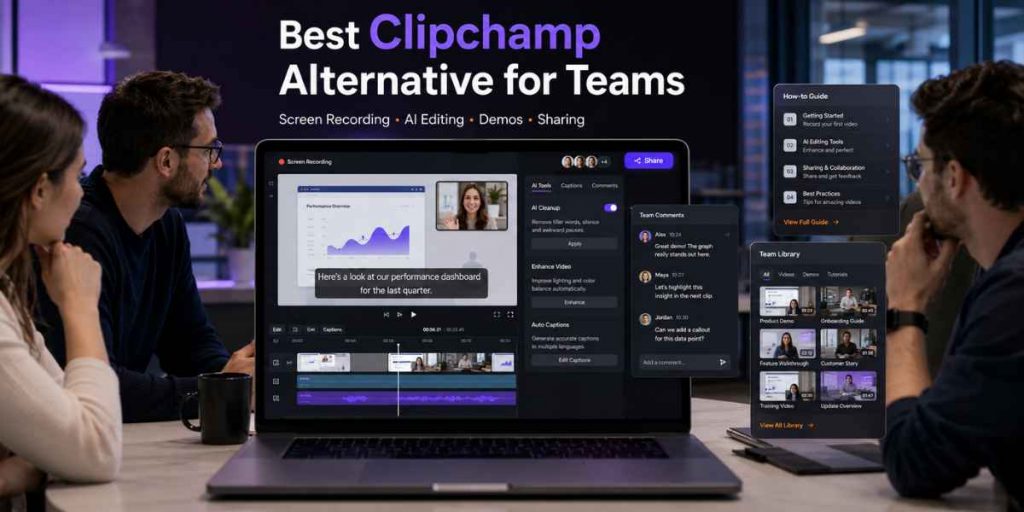
Insert a current screenshot showing screen recording, AI editing, an interactive demo and the shared team workspace. Suggested alt text: “Flonnect Clipchamp alternative for team screen recording, editing and sharing.”
Compare the complete workflow
Review recording, demos, collaboration and pricing before replacing Clipchamp.
Frequently Asked Questions
What is the best Clipchamp alternative for teams?
Flonnect is a strong overall alternative for teams that need screen recording, AI editing, meeting capture, demos, documentation, sharing and team collaboration in one workflow.
Is Flonnect better than Clipchamp?
Flonnect is better suited to repeated business recording, demos, bug reports and documentation. Clipchamp may be better when timeline-based editing and Microsoft 365 integration are the main priorities.
What is the best free Clipchamp alternative?
OBS Studio is the strongest free choice for advanced local recording and livestreaming. Flonnect, Loom and Scribe also provide free tiers for simpler team workflows.
Is Loom a good Clipchamp alternative?
Yes, when the main goal is fast asynchronous screen recording and instant sharing. Loom is less focused on timeline video production than Clipchamp.
Should I choose Scribe or a video recorder?
Choose Scribe when viewers need written steps they can scan. Choose a video recorder when tone, movement, explanation or visual context is important.
Is Camtasia worth it for teams?
Camtasia is worth considering for teams producing polished courses, training videos and formal tutorials. It may be unnecessarily complex for quick updates and support recordings.
Can Clipchamp projects be collaboratively edited?
Clipchamp work and school accounts can share projects with colleagues inside the organization using OneDrive and SharePoint permissions. The personal version does not currently support collaborative editing between separate users.
Official feature and pricing references
Flonnect Compare ·
Flonnect Pricing ·
Microsoft Clipchamp Plans ·
Clipchamp Recording Limits ·
Loom Pricing ·
OBS Studio ·
Scribe Pricing ·
Snagit Business Pricing ·
Camtasia Business Pricing