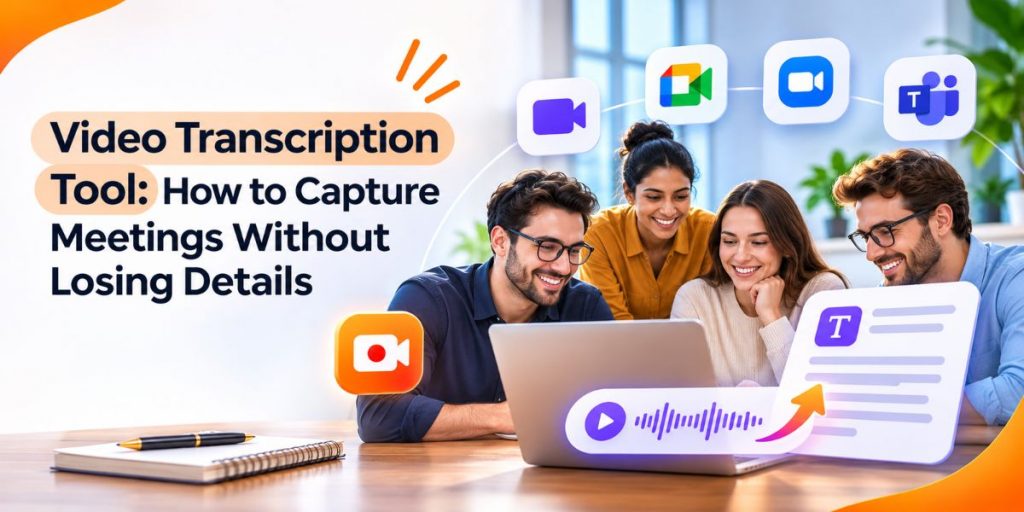
Transcript · Summary · Action Items · Follow-Up
Quick Answer
- Use Flonnect’s Google Meet Recorder to capture meetings, transcripts, summaries and action items.
- Use searchable transcripts instead of replaying an entire meeting to find one detail.
- Keep the recording when tone, screen sharing or context matters.
- Turn commitments into tasks with an owner and deadline.
- Review important names, numbers and decisions before sharing AI-generated notes.
A useful video transcription tool should do more than convert speech into text.
- For meetings, the real value comes later. You may need to find a decision, confirm what a client requested, recover a deadline or update someone who missed the call.
- Flonnect’s existing Google Meet Recorder guide describes this as a meeting-memory workflow: recording preserves the conversation, transcription makes it searchable, and summaries plus action items make the meeting useful afterwards.
The Meeting Memory Rule
Recording preserves context. Transcription makes it searchable. Action items turn the discussion into work.
Important meetings usually need all three rather than a long recording or rushed manual notes alone.
What Should a Video Transcription Tool Capture?
The strongest meeting record contains four different outputs because each solves a different problem.
| Output | Best Use | Why It Matters |
|---|---|---|
| Recording | Full context review | Preserves voice, visuals and screen shares |
| Transcript | Search and verification | Makes the conversation searchable |
| Summary | Fast recap | Helps people understand the meeting quickly |
| Action items | Execution | Adds task ownership and next actions |
Flonnect’s dedicated AI Transcription feature currently supports searchable transcripts, timestamps, speaker differentiation and multiple export formats.
Why Manual Meeting Notes Lose Important Details
The person taking notes is usually trying to participate at the same time.
That creates predictable gaps
Missed Decisions
The final choice is noted but the reason behind it disappears.
Vague Tasks
The task survives but the owner, deadline or context does not.
Lost Customer Language
A specific objection becomes a vague summary.
Weak Async Follow-Up
Absent teammates receive conclusions without the important context.
For a broader recording workflow, Flonnect’s Lecture Recording guide shows how recording, transcripts, summaries and action items can work together for meetings, classes and training sessions.
Searchable Transcripts Turn Meetings Into Reference Material
A long recording is valuable, but it is slow when someone needs one answer.
A searchable transcript lets teams look for
✓ Customer names
✓ Project deadlines
✓ Product objections
✓ Final decisions
✓ Technical terms
✓ Feature requests
✓ Action owners
✓ Open questions
This is particularly useful for remote teams, consultants and customer-facing teams where one meeting may become useful reference material weeks later.
A Transcript Should Support the Recording, Not Replace It
AI transcription can still misunderstand names, technical language or overlapping speech.
| Detail | Why the Recording Still Matters |
|---|---|
| Names and jargon | Transcription can mishear specialized terms |
| Screen sharing | Visual information may not appear in text |
| Tone | Text may not preserve hesitation or emphasis |
| Overlapping speech | Speaker identification can become less reliable |
That is one reason Flonnect works well for this use case: teams can keep the original recording together with the transcript instead of treating transcription as a separate disconnected output.
Why Flonnect Fits a Meeting Transcription Workflow
Flonnect combines the pieces teams normally need after an important meeting.
Recording
Keep the full discussion and visual context.
AI Transcript
Search the meeting by topic, name or phrase.
AI Summary
Reduce a long call into the important outcomes.
Action Items
Extract tasks and responsibilities from discussion.
AI Q&A
Ask questions about the meeting instead of replaying it.
Meeting Minutes
Turn discussion into structured notes and decisions.
For structured post-meeting documentation, Flonnect’s Minutes of Meeting feature can generate summaries, decisions and action items with timestamped notes and customizable templates.
Choose the Recording Method That Matches the Meeting
Flonnect currently supports several meeting-capture workflows.
| Method | Best Fit | Useful Capability |
|---|---|---|
| Browser extension | Browser meetings | Manual tab recording with audio |
| Desktop app | Desktop conferencing apps | System-level recording options |
| Notubot | Scheduled meeting capture | Speaker identification and automated meeting workflow |
If your team mainly works in Google Meet, Flonnect’s older How to Record Meeting in Google Meet guide explains browser recording and meeting-audio capture in more detail.
A Better Meeting Capture Routine
Before
Confirm why the meeting is being recorded.
Inform participants where required.
Check microphone and meeting audio.
During
State decisions clearly.
Name action owners aloud.
Repeat deadlines and unresolved questions.
After
Review the transcript.
Confirm important actions and decisions.
Share the useful version, not just the raw recording.
Make every important meeting searchable
Record the conversation with Flonnect, generate a transcript, review the summary and keep the important action items together.
Using Video Transcription With Google Meet
- Google Meet includes native transcription for eligible Workspace editions, but availability depends on the account, meeting settings and permissions.
- Flonnect gives teams another option when they want recording, transcription, summaries and action items in the same workflow.
- The current Google Meet Recorder article is a useful supporting read for teams specifically trying to reduce manual notes after Google Meet calls.
Using the Same Workflow for Zoom Meetings
Zoom can provide transcription with eligible recording workflows, but teams that use several meeting platforms may still end up with separate archives and different processes.
Flonnect’s Zoom Meeting Recorder keeps Zoom recording, transcription, summaries and follow-up within the same broader Flonnect workflow.
Using Video Transcription With Microsoft Teams
Microsoft Teams also provides native meeting transcription when organizational settings allow it.
The advantage of using one broader recording workflow is consistency. Teams do not need a completely different post-meeting process every time the conferencing platform changes.
For a deeper comparison, see Flonnect’s Best Microsoft Teams Recording Tools guide.
Turn Transcript Text Into Clear Action Items
A transcript should not become another long document that nobody reads.
Look for commitment language such as:
“We need to…”
“By Friday…”
“Follow up with…”
Then convert the discussion into something operational.
Weak
Review the proposal.
Better
Priya will review sections 2–4 and add comments by Thursday.
A Useful Action Item Needs More Than a Task Name
Task
What needs to happen?
Owner
Who is responsible?
Deadline
When is it due?
Context
Why does the task matter?
Meeting Transcript and Follow-Up Template
MEETING:
DATE:
PARTICIPANTS:

RECORDING LINK:
TRANSCRIPT LINK:

PURPOSE
Why was this meeting held?

KEY DECISIONS
Decision:
Reason:
Relevant timestamp:

ACTION ITEMS
Task:
Owner:
Deadline:
Dependency:

OPEN QUESTIONS
Question:
Owner for follow-up:

ASYNC RECAP
Who needs the update?
What do they need to know?
What happens next?
Do Not Send Only the Recording Link
A 45-minute video without context is rarely a useful async update.
A better follow-up contains:
- key decisions
- action items and owners
- open questions
- relevant timestamps
- transcript link
- recording link
This is also where meetings start becoming reusable knowledge. Flonnect’s Video Based Learning guide shows how recorded explanations can become repeatable training and education assets.
For teams turning recorded knowledge into structured how-to content, the Tutorial Creator guide is another useful related resource.
Who Gets the Most Value From Meeting Transcription?
| Team | What They Can Retrieve Later |
|---|---|
| Managers | Decisions, blockers, owners and deadlines |
| Remote teams | Async context and missed discussions |
| Consultants | Client requests and commitments |
| Educators | Explanations, questions and assignments |
| Customer teams | Feedback, objections and customer language |
Review Important Transcript Details Before Sharing
AI transcription reduces manual work, but important facts still deserve human review.
☐ Names checked
☐ Dates checked
☐ Product terms checked
☐ Numbers checked
☐ Action owners checked
☐ Deadlines checked
☐ Decisions verified
☐ Sensitive details reviewed
Recording and Transcription Need Clear Consent Rules
Technical ability to record a meeting does not automatically mean you have permission to record it.
Inform participants where required, follow applicable laws and organizational policies, control access to sensitive recordings, and keep only the meeting information your organization actually needs.
Sources and Methodology
This guide combines Flonnect’s current recording, transcription and meeting-summary capabilities with current native meeting-platform documentation.
- Flonnect Google Meet Recorder
- Flonnect AI Transcription
- Flonnect Minutes of Meeting
- Google Meet transcription documentation
- Zoom transcription documentation
- Microsoft Teams transcription documentation
Last reviewed: November 2026. Meeting recording and transcription availability can vary by platform plan, administrator settings and permissions.
Stop losing useful details when the meeting ends
Use Flonnect to record meetings, generate searchable transcripts, review summaries, capture action items and keep important discussions available for later.
Frequently Asked Questions
What Is a Video Transcription Tool?
A video transcription tool converts spoken audio from a recording into searchable text. More advanced tools can also add timestamps, identify speakers, summarize discussions and extract action items.
Can Flonnect Transcribe Google Meet Recordings?
Yes. Flonnect’s current meeting workflow supports recording, AI transcription, summaries, action items and AI Q&A for Google Meet recordings.
How Do I Record Google Meet and Get a Transcript?
You can use eligible Google Workspace recording and transcription features or use Flonnect’s browser extension, desktop recorder or meeting-assistant workflow depending on how you want to capture the meeting.
Can a Transcript Replace the Meeting Recording?
Not completely. The transcript is easier to search, while the recording preserves screen shares, tone, visual context and anything the transcription may have misunderstood.
Can Flonnect Record Zoom and Microsoft Teams Meetings?
Yes. Flonnect currently provides dedicated recording workflows for Google Meet, Zoom and Microsoft Teams with transcription and AI-powered meeting follow-up features.
What Should I Send After a Recorded Meeting?
Send the key decisions, action items, owners, deadlines and unresolved questions first. Add the transcript and recording links for anyone who needs the full context.